Categories
Computer Tips

Upgrade Your PC

The components you should consider upgrading depend on your PC’s current configuration and your desired improvements. Generally, upgrading the RAM can enhance multitasking capabilities, while a faster CPU can improve overall processing speed.

Here are the most important PC parts that impact your performance the most:

  1. CPU (Processor) – (High impact) active work performance, multi-Threaded Rendering, gaming.
  2. GPU (Graphics Card) – (High impact) gaming, GPU rendering, viewport-display.
  3. Storage – (Medium impact) directly affects how fast your computer reads and writes files, as well as how many projects and apps you have room for.
  4. RAM (Memory) – (Medium impact) tolerance of your computer to handle more complex projects or multiple apps and projects at once.
  5. Benchmarking- Benchmarking your computer helps you figure out what components need to be upgraded.Benchmarking does this by making your computer run a series of operations that mimic certain types of workloads.

    Should I buy a new laptop or upgrade my PC?

    It depends on your specific needs and circumstances. If your PC is outdated and cannot handle the tasks you require, buying a new laptop might be a better option.

    However, if your PC meets your needs with some minor improvements, upgrading it could be a more cost-effective choice.

    Upgrading the graphics card can enhance gaming and visual performance, and adding an SSD can significantly boost system responsiveness. Assess your needs and consult with a professional for tailored advice.You’re given a performance score that you can compare to other systems or components that you are thinking of  buying.

    Benchmarking makes it easy to get an idea of where your system currently stands in terms of performance, and what kind of performance increase you can expect with different upgrading options.

    If you want to upgrade your PC in Surrey, meet the Same Day Geek at the following address#404, 1688 152nd Street – Surrey, BC, V4A 4N2 and you can also reach us via email info@samedaygeek.com and Phone: (778) 294 – 2940

Categories
Computer Tips

Change Notifications in Windows

Silence Annoying Notifications

Change notifications play a vital role in the Windows operating system, providing users with essential updates, alerts, and information. These notifications serve as a bridge of communication between the system and the user, keeping them informed about various events, system changes, and important updates.

The Power of Timely Notifications

Imagine this scenario: You’re engrossed in important work on your Windows PC, and suddenly, a critical software update becomes available. Without change notifications, you might miss out on this crucial update, leading to potential security vulnerabilities or missing out on new features.

Change notifications act as your personal assistant, ensuring that you stay informed and up to date with the latest developments in your Windows environment.

Streamlining System Updates

Windows change notifications streamline the process of system updates. They alert you when updates are available, allowing you to schedule them at your convenience.

By keeping you informed about the importance and impact of these updates, notifications empower you to make informed decisions about when and how to apply them. This way, you maintain control over your system’s behavior while staying protected and optimized.


Tailoring Notifications to Your Needs

One of the greatest strengths of Windows change notifications is their flexibility. You have the power to customize which types of notifications you receive, ensuring that you only see what matters most to you.

Whether it’s receiving alerts about security and privacy settings, application updates, or system maintenance, Windows allows you to personalize your notification preferences to match your specific requirements.

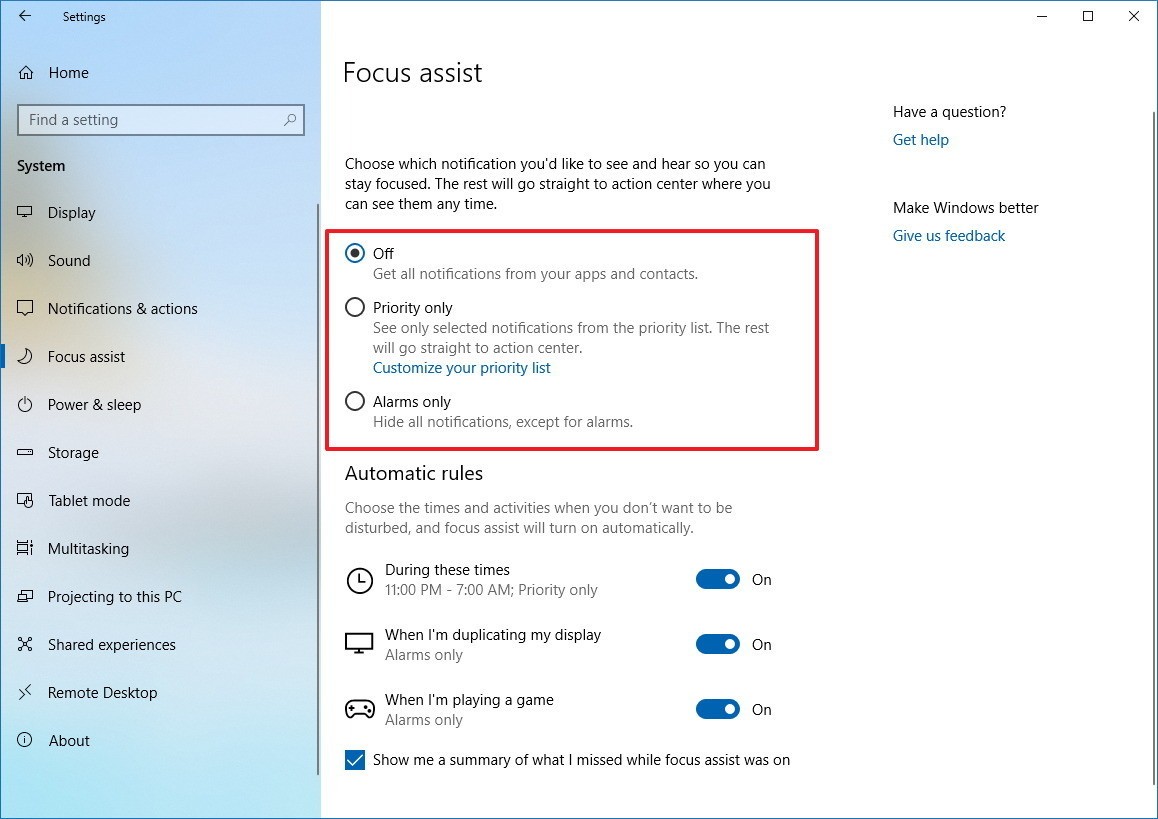
Windows has a handy feature called Focus Assist that is designed to help you focus by minimizing system disruptions, including pesky notifications.

To customize Focus Assist:

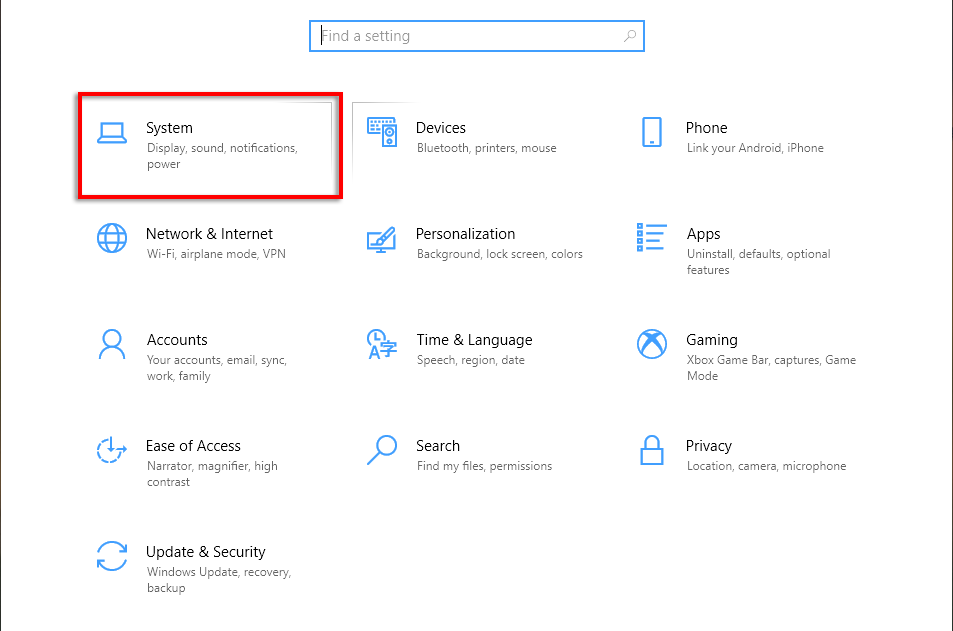
  1. Press the Windows key + to open Settings.
  2. Select System.
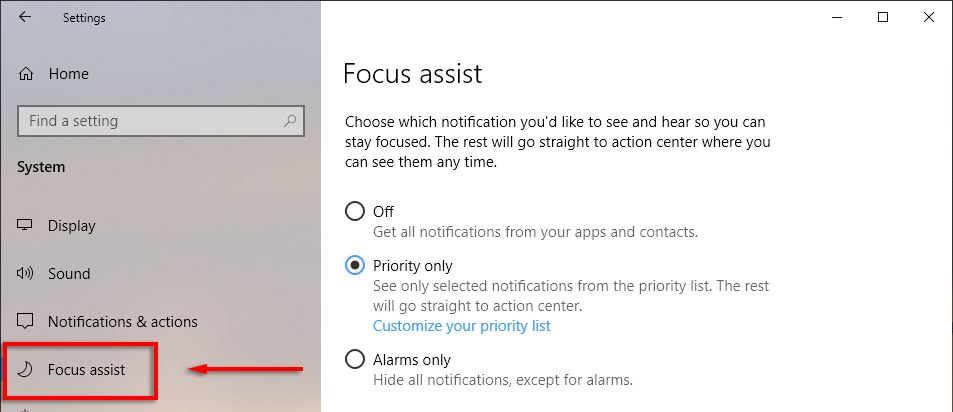
  1. Click Focus Assist.
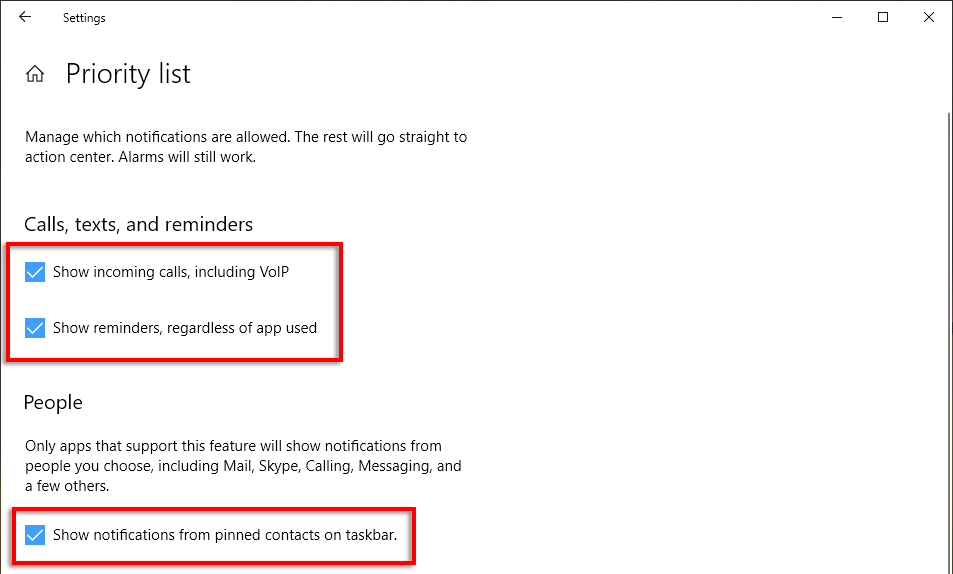
  1. Check Priority only then select Customize your priority list.
  1. Scroll down and check the notifications you want to allow. Unchecked items will go to the action center rather than pop up on your screen.
  1. Under apps, you can remove individual programs by clicking the app and selecting Remove.

Change notifications in Windows are more than just pop-up alerts. They are valuable tools that keep users informed, empowered, and in control of their computing experience.

By providing timely updates, allowing customization, and streamlining system changes, change notifications enhance user productivity and contribute to a seamless and interactive computing environment.

Embrace the power of change notifications in Windows, and stay connected to the pulse of your operating system.

Categories
Computer Tips

How to create a Split Screen in Windows 10

How to split screen on Windows 10 

To split the screen in Windows 10, drag a window all the way to one side of the screen until it snaps into place. Then select another window to fill the other half of your screen.

Drag one of the windows by its title bar to the left or right side of the screen. You’ll see an outline of the window appear — release your mouse and the window will snap into that outlined position.

Categories
Computer Tips

Upgrade to Windows 11

The much-anticipated release of Windows 11 has created a buzz among computer users worldwide. With its sleek design, enhanced features, and improved performance, upgrading to Windows 11 promises to revolutionize the way we interact with our PCs.

Embracing the Next Generation

Windows 11 marks a significant milestone in the evolution of Microsoft’s operating system. Building upon the foundation of Windows 10, this new iteration introduces a fresh and intuitive user interface, designed to optimize productivity and deliver a seamless computing experience.

From the vibrant Start menu centered on productivity to the redesigned taskbar, Windows 11 embraces the next generation of computing, inviting users to embark on a visually stunning and highly functional journey.

A Breath of Fresh Air

Upgrading to Windows 11 breathes new life into your PC. Its refined design and polished interface offer a breath of fresh air, invigorating your daily interactions with technology.

Read Also:

Take Full Web Site Screen Shots

Imagine the delight of navigating through a vibrant ecosystem that adapts to your needs, offering a seamless transition between work, entertainment, and creativity.

Windows 11 opens up a world of possibilities, empowering you to unlock your PC’s full potential.

Enhanced Productivity and Efficiency

Windows 11 is engineered with productivity at its core. Its redesigned interface optimizes multitasking, enabling you to effortlessly manage multiple windows and applications.

The new Snap feature lets you arrange and organize your screen real estate, allowing for smoother workflow management.

Whether you’re a student, professional, or creative individual, upgrading to Windows 11 can significantly enhance your productivity and efficiency, helping you accomplish tasks with ease and precision.

To check if your current Windows 10 PC can run Windows 11, download the PC Health Check app once it becomes available. Download PC Health Check

If you’re running Windows 8.1 or earlier, or if your PC doesn’t meet the minimum system requirements to run Windows 11, consider moving to a new Windows 11 device.

The simplest way to get Windows 11 is via Windows Update. You’ll know that it’s ready for your PC because you’ll see messaging for it in Windows Update.

Follow these instructions to proceed with the installation. You won’t lose any data or files on your PC with this option.

Installation Steps of Windows 11

Step 1: Head over to Settings > Update & security. From there, click Check for updates.

Step 2: You should notice a prompt for Upgrade to Windows 11 is ready, and it’s free. Click the blue Download and install button and agree to the terms with the Accept and install button.

Step 3: You should then see the Upgrade to Windows 11 appear under Windows Update, with a percentage and download status. Wait for it to complete.

Step 4: When finished, you’ll get a prompt to restart your PC. Choose the Restart now option. Your PC will proceed with Windows 11 installation and will restart a few times. When finished, you’ll be taken to the Windows 11 desktop!

Upgrading to Windows 11 heralds a new era of computing, where innovation and user-centric design converge. With its sleek interface, enhanced productivity features, and immersive experiences, Windows 11 transforms your PC into a powerhouse of possibilities.

Whether you’re a digital artist seeking to unlock your creative potential or a gamer yearning for cutting-edge experiences, upgrading to Windows 11 opens the door to a world of endless opportunities.

Embrace the future of computing, upgrade to Windows 11, and embark on a journey of technological excellence.

Categories
Computer Tips

Open a URL Without Clicking on it!

Open URLs Without Clicking Them

Most websites, like TechCrunch and Forbes, include internal and external links that viewers can click and get directed to a new page.

Automation has become a driving force in simplifying our digital interactions. From streamlining workflows to enhancing productivity, automation has revolutionized various aspects of our lives.

Opening a URL without clicking is a prime example of this revolution, eliminating the need for physical interaction while still achieving the desired outcome.

By harnessing the power of technology, we can navigate the online realm effortlessly and seamlessly.

But what if you find a link that’s not clickable?

Categories
Computer Tips IT Support Microsoft

Take Full Web Site Screen Shots

Does this sound familiar? You want to take a screenshot of a whole webpage, including the info below the fold, but your drag-and-drop tool only captures the details on your desktop screen.

Categories
Computer Tips IT Support

3 Best Remote Desktop Access Software

Best Remote Desktop Access Software in 2023

Do you wish to access and manage your PC or Laptop from another device in another location?
Or during your work, you are stuck, need expert help to sort it out and he/she demands remote access to your system.

Then consider using remote desktop software.


NOTE: ONLY ALLOW REMOTE DESKTOP ACCESS TO RELIABLE AND TRUSTED PERSONS.

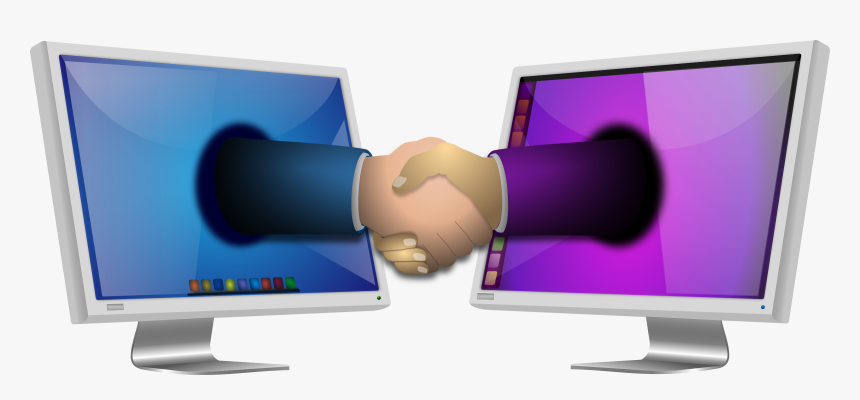
Remote desktop access software is a tool that permits users to effortlessly access their computer from any place, anytime via the internet or local network. The software gives you control over your computer remotely as if you are directly sitting in front of it.

The remote desktop applications listed below will allow users to perform several actions. For instance, employees can view and manage their files on their workplace computers from home. Also, IT experts can diagnose computer issues offsite.

That said, here are the 3 top remote desktop software in the market today.

TeamViewer

TeamViewer – Remote Desktop Access  Application

TeamViewer is the ideal software for cross-platform compatibility. It’s a powerful tool that allows seamless remote access to and from PCs, laptops, mobile devices, and network machines, all with a sense of privacy and security.

TeamViewer comes with both free and paid versions. For personal use, the free version is perfect. The paid version is well-suited for businesses.

What’s even better it has a ton of features, including text chat, screen-sharing, video-conferencing, VOIP, and others. In addition, it offers users the convince of being installable and cloud-based.

Pros

  • Impressively designed viewing window
  • Free version for personal use
  • Multi-level security

Cons

  • Expensive paid version
  • You might have difficulty finding some options

RealVNC

RealVNC – Remote Desktop Access Software

VNC, formerly known as RealVNC, can cater to the need of both personal users and businesses. It’s easy to use and delivers solid and secure remote control and shared meetings.

VNC free plan support up to five computers and about three users remotely. It’s ideal for home use. VNC’s most advanced plans (professional and enterprise) will meet the needs of small businesses.

Just like TeamViewer, it delivers increased levels of security. VNC enterprise plan takes this offering a notch high by providing direct connectivity between devices with fixed IP addresses.

If you want well-priced, sturdy, and easy-to-use remote desktop software, consider VNC.

Pros

  • Well-priced
  • Multi-platform support
  • Online team management

Cons

  • Lacks accessibility features found in expensive competitors
  • Requires high-speed internet

LogMeIn

LogMeIn – Innovative Remote Desktop Software

LogMeIn is an innovative remote desktop software ideal for personal use, large businesses, and enterprises. It’s among the most popular remote access application in the market today.

Although it comes with a slightly higher price tag, it features tons of tools designed for improved productivity. It comes with no free version, but users can test the platform for 14 days for free.

With just one click, the software can share, store and collaborate files. It’s easy to use, highly secured and comes with 24/7 live support. But sometimes, this platform can deliver slow performance.

Pros

  • 1 TB cloud storage for simple storage and file sharing
  • 24/7 customer support
  • Easy remote desktop control and file management

Cons

  • Lacks a free version
  • The interface could be more intuitive

Final Thoughts

Remote desktop access application allows computers to connect and communicate with other devices, irrespective of their physical locations. Personal users and businesses can take advantage of these platforms to increase their productivity and collaboration.

On that note, our selections are widely considered stable and trustworthy. Be rest assured, they will provide you with the support you need to handle complicated technical issues.

We hope our list helps you make the right selection. Thank you for stopping by, and best of luck.

Categories
Computer Tips IT Support Microsoft

Effortless Ways to Print to PDF on Windows

Do you desire to print your document to pdf on your PC? Printing to PDF on Windows is an easy and convenient way to save documents, web pages, and other types of content as a PDF file. Here are some effortless ways to print to PDF on Windows:

Printing to PDF is a great way to save your document. This is especially true if you don’t have access to a printer at the moment.

Use our short guide and learn how to print your document to PDF in windows within minutes.

Let’s dive in!

Microsoft Print to PDF

  • Open the document you wish to convert into a Windows Application
  • Then head to file and select the Print option on the left side of the screen
  • Select the Microsoft Print to PDF option as your printer

Adobe PDF Printer

  • Open the document you wish to convert in a Windows Application
  • Select File at the top right corner of the screen and click Print
  • Head to the drop-down menu below the Printer section and select Adobe PDF as the printer
  • Next, tap Print and type the name of your file
  • Click Save

Using Google Chrome

If you’re using Google Chrome, you can easily print to PDF by

  • Selecting “Print” from the menu
  • Choosing “Save as PDF” from the “Destination” drop-down list.
  • Pressing the keyboard shortcut “Ctrl+P” to open the print dialog box.

Overall, Effortless Ways to Print to PDF on Windows include a straightforward process, and there are many different ways to do it. Choose the method that works best for you based on your preferences and the software you have installed on your computer.

For this method to work, you need to install Adobe Acrobat on your computer. If you have a hard time installing the software, seek the help of a local computer technician like us at Same Day Geek 778-294-2940.

That’s all we have for now. Thank you for stopping by.

Categories
Computer Tips Get Rid of Viruses IT Support Virus Removal

Fast Steps to Get Rid of Viruses

5 Fast Steps to Get Rid of Viruses From Your Laptop

If your laptop displays symptoms of a virus attack, such as slow performance or unusual pop-up error messages, it’s time to get rid of the virus before things get out of hand.

Some viruses can disable your laptop interface, delete your files, or even reformat your hard drives. Others like ransomware can lock your files and force you to pay ransom to access them.

In this short guide, we’ve provided you with five easy steps to remove viruses from your laptop.

Without delay, let’s dive in!

Steps To Get Rid of Viruses From Your Laptops

Step 1: Boot Laptop into Safe Mood

Enter the PC into Safe Mode by heading to Start Menu and Open Settings or press the Win + I on your keyboard.

  • In Settings, head to Update & Security > Recovery
  • Head to Advanced Startup and click Restart now
  • Once the PC restarts, click Troubleshoot > Advanced Options
  • Under Advanced Options, select StartUp Settings and hit Restart

After your PC restarts, choose Enable Safe Mode, and your laptop will start in safe mode. In safe mode, only the minimum required programs and services will load. If any virus is set to startup when Windows start, it will get blocked in safe mode.

Step 2: Clear Temporary Files

Before proceeding with the other steps, delete any temporary files. To achieve this, navigate to the Start Menu and find Disk Cleanup. After the search disk loads, select all temporary files and click OK.

Doing this will speed up the anti-virus software you will use in the next step. Also, it will clear any download files containing viruses.

Step 3: Download Anti-Virus Program

Only two variants of anti-virus programs can detect and get rid of computer viruses and malware. But keep in mind, no program can detect malware and its variants 100%.

  • Real-time anti-virus: They regularly scan for malware in the background.
  • On-demand Scanners: The user has to activate them manually when scanning the PC.

Today’s market is full of on-demand scanners you can download easily. A few examples include:

  • Kaspersky Virus Removal Tool
  • Malwarebytes
  • Bitdefender Free Edition

Step 4: Removing the Infection

When scanning for viruses, it’s wise to use an on-demand scanner first. Follow up with real-time antivirus program. This increases your chance of identifying and removing the virus. Some of the on-demand programs can provide you with steps of removing the infection manually.

Step 5: Recover and Re-Install Damaged Files and Programs

Once the anti-virus completes scanning and removing the virus, you might need to re-install any programs and files that got compromised.

If you created backups, you can use them easily to restore the deleted files on Windows. Remember, it’s wise to back up your programs and files regularly.

Tips on How to Avoid Virus Attacks

Besides scanning your dell laptop for viruses and malicious software regularly, there are other measures you can take to prevent your laptop from getting compromised. These measures include:

  1. Update your anti-virus regularly-Cybercriminals create new viruses and malware all the time. So, it’s vital to keep your anti-virus program current to boost your protection.
  2. Create backups- Regularly back up your files to an external drive or cloud service or both. This way, you can prevent the loss of important information.
  3. Install the latest available software updates for windows.
  4. Don’t click malicious emails and pop-up messages claiming to have detected a problem with your laptop.

That marks the end of our guide. We hope virus attacks won’t give you headaches anymore, and you can now protect your dell laptop from potential attacks by following the aforementioned steps to get rid of viruses.

Categories
Computer Tips IT Support Microsoft

What is Microsoft Cloud PC?

What is Microsoft Cloud PC?

People have been accessing the Internet for over 30 years now. It has allowed us to do things that we never thought possible. Tech giants like Microsoft are taking advantage of this opportunity to make profit but, more importantly, to make the life of users easier.

One advancement that might change the desktop landscape forever is “Cloud PC”. Windows cloud computing service by Microsoft.

For years, Microsoft has included its flagship Window Operating system pre-installed with hardware designed by other manufactures. The operating system is often stored locally and updated regularly through the internet.

However, Microsoft Windows Cloud PC is no ordinary OS. It’s a cloud-based desktop experience that makes it easier for users to access windows and its application from anywhere, anytime.

As a result, users enjoy a secure and frequently updated system without having to depend on underpowered machines.

What is Microsoft Cloud PC?

Microsoft Cloud desktop service is a virtualized Windows 10 OS that runs completely on the cloud.

According to Microsoft, it’s an elastic, modern cloud-based windows experience that uses Windows

Virtual Desktop and Azure System to deliver Desktop-as-a-Service(DaaS).

Unlike traditional Windows OS, which is stored locally, Cloud desktop connects to the internet and accesses the Windows OS and other apps and services remotely. This offering by Microsoft is the perfect depiction of cloud computing in its purest form.

In Cloud desktop, everything will get stored on virtual machines on Microsoft servers instead of running on physical hard drives.

As a cloud PC user, you will enjoy the same visual, tools, and layout available to local Window users.

How powerful is Windows 10 as a Service?

Microsoft is actively testing Cloud PC service. The new Windows 10 as a service will have three subscription plans that users can choose from. The plans will grant customers access to different configurations from which they can run Cloud desktop. The plans include:

  • Medium Plan: Designed for the general purpose and optimized for cost and flexibility. It offers two virtual CPUs, 4GB RAM, and 96 GB SSD storage.
  • Heavy Plan: Ideal for individuals with advanced computing needs. It’s optimized for speed and increased performance. It comes with two Virtual CPUs, 8GB RAM, and 96GB SSD storage.
  • Advanced Plan: Allows users to enjoy accelerated graphics optimized for data processing and scalability. The plan comprises three virtual CPUs, 8GB RAM, and 40GB SSD storage.

The Cloud PC service will differ from Windows Virtual desktop pricing, which depends on Azure cloud usage. To access the service, users will have to subscribe to it at a fixed rate.

This is good news to businesses and homeowners since it allows them to budget exactly for the subscription.

What does Cloud PC Mean for the Users?

Cloud desktop makes it easier for users to manage their apps and services since it eliminates the need for manual installation.

Everything will run from the cloud in a virtualized manner, meaning businesses and organizations can stay updated in a scalable and more simplistic way. They won’t have to struggle with the burden of rolling out massive future updates.

Let’s not forget that most of the time Windows updates rolled out by Microsoft often tend to cause significant problems and even hardware compatibility issues.

The new cloud desktop service will allow users to utilize their devices as thin clients to access remote Windows desktops and use software like Microsoft office.  As a result, individuals who regularly switch between devices will easily access their PC on their mobile device anytime.

So, what are your thoughts on Cloud PC? Do you see yourself subscribing to the service? Or do you plan to stick to your traditional Windows PC?

Categories
IT Support

Remote IT Support Services

Remote IT Support Services – A Quick Solution!!

Computer glitches can occur at any time, you just can’t avoid them. But the ways to fix these computer problems are even better and quicker than ever. Computer repair over the internet is where you can find a swift fix for your issues.

Wouldn’t it be brilliant if you could get instant help whenever you encounter an issue with your computer? It is all possible with remote repair services. It is a quicker and time-saving approach to dealing with your IT-related problems. If you face either a hardware or software issue, an offsite services platform is the way to fix them instantly via an online platform.

Network and computer issues, breakdowns, hardware malfunctions, data corruption and lots of other problems for both a Mac and a PC can happen which can destroy your critical projects or data, which means everything for your organization.

It can affect customer services, brand image and reputation adversely. Here is where the role of outsourcing support services becomes crucial.

Remote IT Support Services: Some of the Key Benefits

Given the COVID-19 pandemic, the significance of the role that remotely accessible services is maximized. It is always in demand during normal circumstances as well. Below are some of the numerous benefits of offsite support services:

Quicker Response Time

Undoubtedly, this is one of the best and most applaudable characteristics of offsite IT services. Technical support can be delivered in a fraction of the time. It is an instant move, rather than waiting for a technician to visit your site for repairs.

Better Focus on Business Concerns

Everything can be affected if you worry about your IT related issues. It is such a tedious task, and if you decide to deal with them personally, it can take your focus off of your main goals and interrupt your business.

Access to Latest Technology

Technology keeps on updating. Windows and software packages have regular upgrades. Accordingly, your computer system needs up-to-date software applications and other peripherals to carry on the processes hassle-free.

Your remote IT Support services provider will handle your issue with the latest and most up-to-date software tools.

Production Increment

If you and your employees get distracted by IT issues, it can stop you from focusing on your primary roles causing your productivity to fall. But having a computer service provider handle your computer bugs can excel your production and quality as well.

Lesser Maintenance Cost

Furthermore, you will also save substantially on your maintenance expenses by hiring remote IT support services. The online support eliminates travel charges and contains the whole package at a minimum cost.

Efficiency

Efficiency is another prominent factor that can’t be ignored. Around 90% of software issues can be resolved remotely which makes it the best and preferred option for most enterprises.

Using our online computer repair support technology we will link your computer to ours via an internet connection to repair your computer while you watch. The fact is that most personal/business computer problems are software related. This means that, in almost all cases, a technician does not need to physically touch your computer and a repair can be done via our online computer repair service.

Categories
Computer Repair Computer Tips IT Support

How to Protect Your Computer From Viruses & Malware

Best Ways to Protect Your Computer from Viruses & Malware

Development and threat go side-by-side. The same is relevant too when it comes to computer technology. The computer and virus are two sides of the same coin. These systems are always at high risk of several types of notorious types of malware. Today, in this guide, you will learn how we can protect your computer from viruses. So, keep reading on if you really want to safeguard your PC against unwelcome threats.

Nowadays, new viruses and malware are being developed at a rapid pace. Thousands of risk-driven substances come into existence every day. Hackers use them as a prime weapon to attack targeted PCs.

At the same time, we also have lots of preventive actions that we can take to alleviate the risk. Thanks to the advanced technologies and anti-virus programs, which help withstand the virus attacks and minimize their impact to a stunning extent.

This guide will assist you with some elementary yet effective ways to protect your computer from viruses and other harmful programs. But before we proceed, let’s have a brief overview of what the virus actually is and what are various symptoms to recognize in your PC.

What is a Virus?

Well, a computer virus is a kind of software application that travels from computer to computer. They spread quickly through multiple channels, but emails, instant messaging, web portals, and physical hard drives are the favorite sources for their transportation.

Not all PC viruses are destructive. Some are benign, but others can attack your computer system brutally to delete data and break down your PC’s performance. So, having a PC under a virus threat is always a panic point overall.

How to recognize if your PC is infected with a virus?

Whenever your computer is infected with a virus, you will most likely encounter various indicators as written below. However, these issues can also be emerged due to other factors.

  • Your PC appears slower than usual
  • Suddenly stops responding
  • It restarts and shuts down on its own
  • Weird error messages start to appear on the screen
  • New icons and folders are created on the desktop
  • The anti-virus program goes out of order
  • System or application software you use regularly are suddenly sluggish to operate
  • Disk drives become inaccessible

How to Protect Your Computer from Viruses?

Now is the time to take the final action. This section will elaborate on various authenticated and legitimate ways to safeguard your PC against unwanted virus attacks. Hopefully, these will work for you.

Install an anti-virus application software

This is the most recommended tool to fight computer viruses. In fact, you should buy a competent anti-virus program on the same day you buy a computer to protect your computer from viruses. It is the preliminary action we can take to combat deadly viruses for comprehensive protection.

The operating system and software upgrade

Make sure the OS and software installed on your PC are always up-to-date. Software companies keep launching updates to their applications to make virus attacks ineffective. The latest updates help to counter new viruses as well.

Set Strong Passwords

To protect your computer from viruses & malware it is very important that you must always generate a strong password for your online activities. It should be created carefully by incorporating letters, numbers and special characters. You should compile an 8-character password in length.

Avoid clicking links in emails

It is yet another good precaution to prevent viruses from entering your PC. Unless you know the sender, just avoid following the links in the email. This is one of the widely-used tricks of hackers to kidnap your computer.

Make sure to use a pop-up blocker

To experience risk-free and safer internet surfing, you should use a pop-up blocker. Why this? Well, many pop-ups contain malware and other malicious payloads that can harm your system. Similarly, you can also turn on the User Account Control (UAC) to avoid access without your permission.

Scan the media drives and downloaded content

Last but not least, you need to scan the physical media drives before transferring data. Similar is the case with the content downloaded from the web.

Categories
Computer Tips IT Support

How To Improve the Life of Laser Printers

The HP Printer solution supplier Metrofuser test prints over 5 million pages on nearly 3 million sheets of paper each year.  Over the past 15+ years in the process of repairing over 500,000 HP printer parts and laser printer devices, the company has discovered the 4 critical decisions that you can make that improve the life of Laser Printers.

1. Choose Quality Toner  

Aside from the obvious image problems and short life expectancy, poor-quality toners also use heavier abrasive toner particulate. This type of toner can damage the printer’s paper path parts over time such as the fuser, paper sensors, paper input and output trays. It is recommended to only use OEM or high-quality remanufactured toner.

2. Use OEM New or OEM Rebuilt Printer Parts Only

Many imported printer parts are newly built clones. They are designed by someone other than the original equipment manufacturer. While they look very close to the original there are microscopic differences. This usually results in problems with fit, form and function over time. We recommend OEM New or if you’re looking to save some money, without sacrificing quality, using OEM rebuilt replacement printer parts. The OEM part chassis is engineered to match the printer.

3. Educate the User to Avoid Damage

Believe it or not, many of the printer damage we see on parts is done by accident by the end-user. The following is the most common list of end-user-related problems.

  • Pulling too hard on the paper to clear jam damage the printer.
  • Slamming the paper tray when loading paper.
  • Using sharp objects to clear a paper jam damages parts.
  • Dropping staples inside the printer.
  • Feeding paper with staples into the ADF automatic document feeder.

Educating the users of office printers can make a big difference in the expectancy. The owner’s manual is a great source for teaching people how to clear printer paper jams and loading the different paper tray cassettes.

Improve the Life of Laser Printers

4. Select ColorLok® and BLI Certified Paper

Metrofuser has found both ColorLok® and BLI Certified Paper provide clearly superior performance.  Printers are more reliable and are able to maintain image quality over more pages when compared to abrasive, large-particle filler papers. In addition to experiencing significantly fewer paper jams and other errors, these papers leave behind less dust and toner contaminants, which could potentially contribute to long-term printer reliability and image quality issues.

Testing for these certifications involves running roughly one million sheets through dozens of different copiers, printers, fax machines, digital duplicators and multifunctional devices while assessing packaging quality, cut/edge attributes, image clarity, and crease permanence, as well as numerous “run-ability” metrics. The tests prove which papers are least likely to suffer from image quality or sheet-feed problems. 

Certified papers are sold under various brands through retail, internet, catalog and contract stationers. Consumers can ask and look for the BLI or ColorLok® seal of approval on cartons and reams of imaging paper.

Learn More About The Effects Of Paper On Printers

Colorlok Brands

  • Member’s Mark – Sam’s Club
  • Antalis – Europe
  • WB Mason Blizzard
  • Copamex – Latin America
  • Domtar – North America
  • Georgia Pacific – North America
  • HP – Worldwide
  • Inapa – Europe
  • International Paper – Worldwide
  • JK – India
  • Metsa Board – Worldwide
  • Mondi – Europe
  • Office Depot
  • Papyrus – Europe
  • Staples – Americas
  • Stora Enso – Europe
  • Suzano – Latin America

 BLI Certified Brands

  • Boise X-9 Multi-Use Paper
  • Pioneer Paper
  • Navigator
  • Diverse Earth paper
  • GP Spectrum Multi-Use Paper
  • Yes Paper
  • Future Paper
  • Many Others

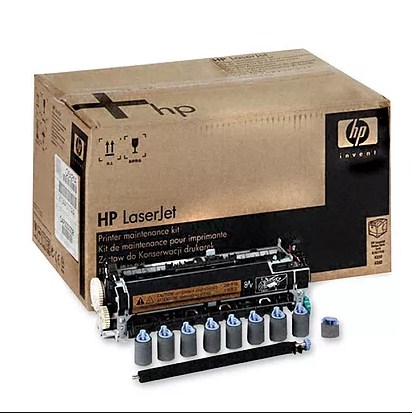
If any of your printer parts are damaged, always buy parts from a reliable printer parts provider. Metrofuser is a leading global innovator, and manufacturer of printer parts, equipment, diagnostics, repair information and systems solutions for professional users performing critical tasks. Products and services include hp printer parts, printers, and printer repair training. Parts include hp printer parts such as printer fusers, printer maintenance kits, and other hp printer replacement parts.

Categories
Computer Repair Computer Tips IT Support

5 Tips for Setting Up Your Workstation Properly for Health

This post is related to the computer setup and your health is backed by credible references.

Most of us today have a desk job, and so it’s easier for us to ignore our health. Your health doesn’t just depend on the hours of exercise you put in each week. Instead, everything counts, from the way you sleep to how you sit, or even how much you type on the keyboard.

If you aren’t careful, it can lead to Musculoskeletal Disorders (MSD), which are degenerative in nature. Most often, they are caused by sitting in awkward postures for a long period. A 2013 study by the Bureau of Labor Statistics concluded that 33 percent of all workplace injuries and illnesses were MSD cases.

According to the Occupational Health and Safety Administration, employers in the US saw 647,000 workplace injuries in 1995. They spent around $15 to $20 billion in direct compensation and $45 to $60 billion in indirect compensation to the workers. Some of the common MSDs caused by desk workers include dermatitis, rash, hearing loss, joint stiffness, and eczema.

Check Computer Maintenance List

If you aren’t careful, it isn’t just a terrible back pain that you should be looking at, but everything from reduced productivity to other health disorders.

Top 5 Tips to Properly Setup Your Computer Workstation

Here are some tips for setting up your computer workstation to increase productivity and sustain health:

1. Monitor Distance

Your LED/LCD/Monitor distance is the most important consideration in setting up your workstation properly. Ergonomics plays an important role in keeping your body comfortable and injury-free. Your computer monitor should be exactly perpendicular to your eye level so that your neck remains straight. Make sure, your line of sight covers one-third of the screen. Don’t sit too close to the monitor screen as it may strain your eyes. Doctors suggest maintaining a distance of at least 18 to 30 inches from the screen.

2. Office Lighting

Sufficient lighting is important for putting less stress on the eyes, headaches, and blurred vision. Should you feel your workstation needs more light, don’t hesitate to buy some new ones. Your eyes may just thank you. Also, ensure that you increase the brightness around a glare source as it can harm your eyes. The best lamps generally use LED technology.

3. Keyboard and Mouse

79 percent of cases of musculoskeletal disorders were recorded in three age groups – 25 – 34 years, 35 – 44 years, and 45 – 54 years during the 2001 study by the National Research Council and the Institute of Medicine. 70 million people visited US hospitals and clinics in the same year for treating MSD. One of the common reasons is improper keyboard position. When you place your keyboard in the keyboard tray, angle it in such a way that your wrists aren’t bent, and your arms rest on the chair.

In case you don’t have a keyboard tray, increase the height of your chair so that the correct position is achieved. Remember to increase the height of your monitor screen at the same time, so that you are eyes and neck are comfortable.

Every year, carpal tunnel syndrome affects 1.9 million people in the United States with around 300,000 to 500,000 requiring surgery to cure it. Always keep the mouse on your right side next to the keyboard, not in front of it. Never squeeze the mouse while using it but simply hold it lightly since it can put a strain on the muscles of your hand.

Pick an ergonomic mouse that supports your palm and fingers. Keep your hand rested while doing so. If your mouse pad has a rest, use it rather than keeping your hand hanging. Increase the mouth pointer speed, so that the instructions are followed at the slightest command.

4. Chair Set Up

Are you sitting in the chair upright? An improper posture can lead to arthritis-like conditions and back pain. In the United States, around 27 million people suffer from osteoarthritis, which is characterized by constant joint pain and the inability to lift heavy things. In extreme cases, they aren’t even able to walk.

  • Always make sure that your feet at touching the ground.
  • Ensure there’s sufficient space between your seat pan and the back of your knees.
  • Sit at a comfortable angle of  90 to 95 degrees, anything more or less can hurt your back.

5. Backrest Support and Ankle

The Bureau of Labor Statistics estimated around 372,683 back injury cases while at work. Out of them, 79 percent were between the age of 25–54 years, 64 percent were male, and 70 percent were non-Hispanic white people. A backrest angle of 95 to 105 degrees will prevent back pain. Every work chair has a free-flow function, which you can use to set the degrees. Always buy a chair with armrests because they support your back by keeping the shoulders down.

Since you have a nine-to-five desk job, it’s a good idea to engage in neck and back exercises every hour.

Setting up your workstation properly is the first step towards increased productivity and health. I hope you implement some of the tips included here today.

Categories
Computer Repair Computer Repair Services Computer Tips IT Support

Why Businesses Need A Reliable Computer Repair Service

Importance of Computer Repair Services

Every business knows that when their computer systems are down they are rapidly losing business, customer leads, losing touch with operations and resources. With the development of modern technology, everything is digital and documented in an operating system. If there is a problem with the computer systems or company software it can completely sidetrack a business’s daily activities until the problem has been resolved by Reliable Computer Repair Service Providers.

There are three common reasons a business should hire a reliable computer repair service, these include general repair and troubleshooting, spyware and virus removal and software or custom application training. For these services, a business should always count on the same company so they can get to know their team, equipment, and computer programs so they can be reliable and get the business back up and running ASAP.

1. Troubleshooting and Repair

A general troubleshooting and repair service is extremely important for businesses to be partnered with. There are a number of computer problems that can occur in a business. It can be incredibly frustrating to not know how to fix the problem or worse; Sometimes if you try to fix the problem yourself it may make the issue more severe!
IT Support companies will be able to:

  • Diagnose the problem
  • Save important information, data, and files
  • Help employees to understand the issues
  • Fix the Problem
  • Prevent the problem from happening again

With the latest technology like remote software and a genuine desire to understand the business’s needs, a reputed and reliable computer repair service will be able to find the problem and fix it, quickly and efficiently.

2. Spyware and Virus Removal

Spyware and virus attacks are businesses ‘ worst fear. It means not being able to use the computer as desired or at all. Some signs of virus attacks include:

  • The computer is running slow
  • Giving error messages
  • Will not boot up
  • Anti-Virus software is not running
  • Browser not opening web pages
  • Opening to unfamiliar web pages

A high-quality IT Support Company has the experience to get rid of computer viruses for good.  A good company will also give recommendations so that the computers will not be susceptible to an attack again.

3. Software Training

If your business team is new to Office 365 or your company would like to move to cloud services, it is good to hire a computer company to effectively train the staff. Hiring a third-party service has many advantages such as; in-depth knowledge of computer programs, saving time by passing over the learning curve and covering every part of the software for employees. This ensures that programs will be used as intended and the software will be doing its job at its optimal capacity.

Partnering with one computer repair service for all of your business’s IT needs is the best way for an IT support company to thoroughly understand your business and how IT resources can be used to your business’s best advantage.

Categories
Computer Maintenance Checklist Computer Tips IT Support

Ransomware Attacks in Canada!!!

Ransomware Cyber Attack Canada

You walk into your office one morning and turn your laptop on, expecting to see your email or Facebook profile.

Instead, you’re greeted with a big red image – and it’s demanding that if you don’t pay $300 in the next 24 hours, everything on your computer will be erased and gone forever.  This is a type of blackmail software called “ransomware” that locks away photos, music, video and other files on your computer – then charges you for the password.

Ransomware Cyber Attacks in Canada have increased tenfold over the last year. Lawyers’ offices, hospitals, police stations, businesses, and home users have all been affected. Last year The University of Calgary paid $20,000 to retrieve data that was encrypted by secretly installed computer malware.

Here in the lower mainland, we’re starting to get more and more calls from individuals and businesses that have been attacked. Sadly, once attacked, there is very little we can do to retrieve the data.  Most times we can only clean the computer of current threats.

Technology experts say that most attacks will start from links or attachments in email messages, with the attackers relying on people’s curiosity to follow the link they provide. The emails can sometimes be hard to identify, because of the sophisticated ways that they are created. There usually aren’t any spelling errors, and the design is made to look like banks or credit unions. They will even target a social network such as Facebook or Twitter. In one month last year, the “Locky” ransomware sent over 50 million emails this way.

Ransomware is very sophisticated. The attackers will have helpful websites and ‘frequently asked questions pages to make it easy to pay the ransom.

The number one way to decrease the harm of ransomware attacks is to back up your files. This should be done often and both online and offline to prevent the malware from spreading through shared drives. It’s also important to install all updates and have an antivirus on computers.

If you are attacked the first thing to do is to disconnect from the Internet and then avoid restarting the computer. Some types of ransomware have a second stage that starts after a reboot.

There is also no guarantee that paying the ransom will get the encrypted files released. In fact, only 30 percent of those attacked get their data back after they pay.

Categories
Computer Maintenance Checklist Computer Repair Computer Repair Services Computer Tips Get Rid of Viruses IT Support Virus Removal

Types of Computer Repair Services

Common IT Support & Computer Repair Services

In today’s fast-paced digital world, computers have become an integral part of our daily lives. Every industry needs computers for daily operations and smooth business activities. From personal laptops to business networks, we rely heavily on technology to stay connected, be productive, and pursue our digital ambitions. However, just like any other machinery, computers are prone to occasional hiccups and malfunctions, causing frustration and disruptions in our workflow.

This is where IT support and computer repair services come to the rescue. Whether you’re an individual struggling with a slow-performing laptop or a business grappling with network issues, experienced computer technicians can alleviate your technological woes and restore functionality to your computers.

A computer problem or issue disturbs the whole course of a business that’s why businesses need to have their computer serviced at a moment’s notice. Every industry always needs fast and reliable computer repair services.

It’s recommended for every business and IT Professional to know about computer problems and the different computer services needed to deal with them in order to choose the right service for your specific problem.

In this blog post, we’ll explore the common IT support and computer repair services that you should be aware of.

Types of computer repair services

Hardware Services:

This is for physical damages that are incurred by the computer or its accessories. This involves fixing or replacing damaged or faulty computer components such as:

  • Hard drives
  • Motherboards
  • Power supplies
  • RAM

Software Services:

This involves fixing issues with software programs, operating systems, or drivers. It can include virus removal, software updates, and reinstalling operating systems.
This may include:

  • Reinstalling or updating software
  • Fixing software conflicts
  • Resolving operating system errors

Virus Removal:

In this service computer technicians ensure that the virus will be removed without risking the important data or information on your computer. You can also get virus removal services online to get your computer up and running problem-free.

Accessories Repair:

There are many computer accessories like scanners and printers which might need repair due to damage. A professional computer technician that specializes in computer hardware will be able to fix such issues.

Data Recovery and Backup:

Data recovery involves retrieving lost or accidentally deleted data from a computer’s hard drive, flash drive, or other storage devices. Sometimes, due to issues such as hardware crashes or a virus, your essential data might get lost. It might not be possible for you to recover the data, but professional computer technicians can recover the data by tracking information. This is an extremely sensitive issue, therefore, you must choose a reliable and experienced computer technician. Professional technicians of Same Day Geek use specialized tools to recover important files safely. Hiring an inexperienced technician might result in the permanent loss of essential data.

Computer Networking and Troubleshooting: 

Computer network repair services This involves setting up and troubleshooting issues with local area networks (LANs), wide area networks (WANs), or wireless networks, networking training, network fixes, and other network-related problems.

Covers the installation and troubleshooting of network connections, including:

  • Wired and wireless network setup
  • Resolving connectivity issues
  • Enhancing network security

Computer Maintenance and Upgrade Services:

Maintenance and upgrades involve regular maintenance tasks such as cleaning the computer’s hardware components, optimizing its performance, upgrading hardware or software to improve its functionality, file cleanup, upgrading and installing new windows or programs and general inspections.

Your home and business computers require constant updating and tune-ups. Regular maintenance helps improve computer performance and longevity.

Maintenance Services include:

  • System updates
  • Disk Cleanup
  • Hardware inspections
  • Performance tuning

Computer Customization:

Computer Customization refers to custom builds and upgrades of PSs. IT Support firms help you assemble a custom desktop PC based on user specifications and needs. They also help YOU in replacing or upgrading hardware components such as CPUs, GPUs, or storage devices to enhance performance.

If you know what you need but can’t find it in stock computers, you can ask a computer technician to build a customized computer for you with specific features according to your or your company’s needs.

Remote IT Support:

Remote support involves providing computer repair and maintenance services over the internet, using remote access software to connect to the computer and fix issues.

Tutoring/Training: 

Consultation and training involve providing advice and guidance on computer-related issues, as well as providing training on how to use software programs and hardware devices.

If you have installed software and your business team is new to it, you can hire a computer company to effectively train your staff. These teachers have in-depth knowledge of programs and will save time by passing over the learning curve. With the day-to-day use of computers and the problems that may occur, many people would like to learn how to do basic computer servicing and repair so some technicians also offer tutoring services.

Now you have a clearer understanding of the various IT support and computer repair services available, empowering you to make informed decisions when seeking assistance. Whether you’re looking for a trusted service provider, want to optimize your computer’s performance, or wish to troubleshoot a specific issue, this comprehensive guide will serve as a valuable resource.

At Same Day Geek, we provide an array of IT support and computer repair services in Delta, South Surrey, Surrey, White Rock and Langley.

List of computer repair services offered by Same Day Geek:

  • PC Technical Support
  • PC Repair Services and Troubleshooting
  • PC Setup / Installation
  • System Security Testing
  • Networking/ Wired / Wireless Networking
  • Hardware repair services/ Upgrades / Installation
  • Software repair services / Upgrades / Installation
  • Operating System Updates (OS)
  • Anti-Virus Installation / Removal
  • Motherboard Replacement
  • Memory Upgrades and more IT repair services

Call Us Today at (778) 294-2940

Categories
Computer Maintenance Checklist Computer Tips IT Support

Important Computer Maintenance Tips

Proper computer maintenance will help keep your PC running smoothly. A few minutes spent on updates and tests can avert sluggish performance and frustrating crashes. You’ll read here 7 Important Computer Maintenance Tips.

Here are some computer maintenance tips:

Install Updated Antivirus Security Software

Install a good antivirus program and set up a regular scan. Some computers come with a pre-installed antivirus program, but be sure the antivirus is installed and is set up to regularly search for malware and delete them. There are many free antivirus programs such as Avast, AVG, and Avira available if you need them. But no matter what, it is essential to protect your computer against viruses.

Consistently Backup Data

Create restore points and consistently back up your data. You may back up your files on the hard drive (or an external hard drive or the Cloud to be extra safe). Computers usually come with a program to create a system restore points (Time Machine on Macs, System Restore on Windows computers) that save a complete version of your computer that you can return to later. This is helpful if a virus has completely crashed your computer and you can’t find out how to get rid of it. Simply go back to before the virus was introduced. Set up the program to automatically create regular backups or you can install a third-party program to do this.

Keep Your System & Programs Updated

Software developers regularly update everything from your operating system to all other programs you use regularly. These updates make sure your software is running at top efficiency. These updates also regularly plug security holes so you should install updates as soon as you are notified to protect your computer against malicious spyware and viruses.

Computer Maintenance Tips

Uninstall Unused Programs and Files

If you have an older operating system regularly defragment the hard drive to keep the computer from slowing down. Make sure to uninstall unused programs and files. The more free space your computer has the faster it will run. Do a disk cleanup regularly to clear out junk files that get downloaded by your browser or other temporary program files that take up space.

Always Browse Safely

To avoid viruses and phishing scams always browse safely. Malicious software that destroys computers, finds its way to your computer by you unknowingly clicking on it. Always read the web address before you click a link in a search result. Never click through on a suspicious pop-up window, don’t give login information even if the requester claims to be from a reputable firm and never open any email or email attachment you are unsure of.

Clean Out Dust and Grime

Clean out dust that accumulates outside and inside of your computer. Built-up dust may cause overheating and could become the reason your computer breaks down. Just use a small vacuum to remove dust and other particles and spray with compressed canned air. For tower-style desktops remove the side panel to carefully clear the dust inside the tower for optimum performance.

Always Plug Your Computer into a Surge Protector

Electric storms or surges may cause irreparable damage to sensitive components inside your computer. The best way to protect it from power surges is to plug your computer into a surge protector.

If your computer is suffering from an issue and you don’t have a solution, contact a reliable Computer Repair Technician in order to fix it.

Categories
Computer Repair Computer Repair Services IT Support

Importance Of Network Support

Hire the Best Network Support Services 

Every business needs network support & computer services to function efficiently and effectively. It involves monitoring, troubleshooting, and resolving network issues, which can lead to financial losses and damage to their reputation if left unresolved. The importance of network support ensures that networks operate smoothly, securely, and efficiently, allowing businesses to focus on their core operations and achieve their objectives.

This is because communication plays a vital role in any business. Today clients and customers are hiring services and buying products through the Internet. Employees of an organization communicate within the organization and outside the organization through the internet and other networked systems.

This shows that almost all modern businesses cannot function successfully without computers and efficient networks. The daily operations of a business will be halted completely in the case of a network or computer failure. Therefore businesses need efficient and effective support of professionally trained and experienced computer technicians.

How To Ensure Effective & Efficient Business Performance

With the knowledge of the essence of computers and networks to modern businesses, it is important for businesses to enlist the best computer repair services and their servers and network solutions. An organization that wants to enhance its performance in all departments must have the best computer and network support.
Regardless of the size of an organization or what it deals in, it will require computer services at some point. If you have this service in place you do not have to waste days or hours waiting for a computer technician to come to your business and fix the problem. By enlisting the service of a reputable IT service provider, you are assured of getting efficient and effective solutions to computer, server and network problems immediately.

Choose the Best Computer Services

Currently, there are many IT service providers. This makes it easy to hire a computer service to fix your computer, network or server problem. However, finding the best service to fix your server, network or computer problem can be overwhelming. Therefore it is very important that you learn how to identify the best IT expert to fix your computer issues.

Below are some importance of network support factors that you should consider when hiring a computer technician:

  • Microsoft certification and professional training
  • Experience of the IT expert
  • Quality of the service that the technician has been offering to clients
  • Reliability
  • Price

A good computer technician should have multiple certifications (especially Microsoft Certified) to prove their high professional training. They should also be experienced in service delivery. Additionally, the selected company should work with a team of highly experienced professionals. Their services should be available to you round the clock with 24/7 customer support. With such an experienced technician, you are guaranteed the best computer services and network support (server maintenance) at any time.

Nowadays most business computers, laptops and PC users face an IT problem and need network support and server maintenance. Always try to hire experienced and dependable computer repair services to solve these problems effectively and efficiently.

For any kind of IT services in Surrey, White Rock, Delta and Langley Contact Same Day Geek at (778) 294-2940.

Categories
Computer Repair Services Computer Tips IT Support

Basic Considerations When Hiring Computer Services

Computers are an integral part of our life. Rapidly increasing numbers of computer users require competent computer technicians for repairing and maintaining your computer. There are a few checkpoints for hiring computer services,

This has already led to a growth in computer service providers. Consequently, you come across many technicians who claim to be highly qualified to undertake computer repairs.

Unfortunately, unlike HVAC and plumbing repairs, computer repair is a service that is not yet regulated by a government agency or requires any official licensing. Nowadays every organization depends on its computers for doing important activities to keep their business running, and simply replacing the computer isn’t a viable option. It becomes imperative for businesses and for home users to be extra careful when looking for computer services.

Below are some considerations you should take before hiring a prospective computer technician to assure that they are qualified to undertake the job:

Training and Certification
It’s important to hire a professional and experienced computer technician to make the repair. Although there are no official prerequisites for working as a computer repair expert, there are certain certifications, such as A+, that a proficient technician should possess. An A+ certified technician has the “knowledge and skills necessary to manage, maintain, troubleshoot, install, operate and configure office computing equipment, describe computing technologies, basic principles, adhere to professional standards, and use testing tools[h1] .” If you need services for a printer, server or network make sure that the service provider is trained in that particular field.

Practical Experience
For servicing any equipment practical experience is the most important and computer servicing is no exception. The greater the experience of a computer technician, the better it will be for you. Try to find an expert with a minimum of 5 years of experience, though 10 would be ideal.

Company Employee Or Individual Technician
Before hiring a technician you should know their background. Technicians employed by large companies may fail to provide the desired level of service. Such technicians do not bear any personal responsibility for the efficient working of your system and they may lack experience. A technician owning a small computer repair company will be keen to do a perfect job to get repeat business and good references from you.

Onsite or Off-Site Repair
Many good companies provide on-site repair services while some only provide off-site services. So you should know this in advance.
Charges
Some computer service providers charge on an hourly basis while some come up with a fixed quote. Many customers often forget to ask about the charges. Even though you might be upset and eager to get your system up and running again, make sure to discuss charges in advance.

How Long Repair Will Take
Ask your technician how long the computer repair will take. Some computer problems can be fixed within an hour, but some problems may require multiple hours or even days. In some cases, you may have to leave your computer at their shop or hiring computer services providers for several days.

Categories
Computer Repair Computer Repair Services Computer Tips

Choose Only Top Rated Computer Repair Shops

Whenever you encounter any technical problem with your computer or laptop you need to contact an experienced PC repair shop. Choosing the most experienced and reliable service provider for your computer troubleshooting is absolutely essential. There are different types of computer repair shops that you can find in your local area as well as on the internet. Some of them provide good quality service while others deliver very poor quality work. If you do not find the right service center it can cause other software or hardware issues for your computer. This is the reason why you should choose only top-rated shops. There are many reasons for computer software and hardware failure. Your system may get infected with a serious virus program that causes software issues. Some common symptoms of virus infection are:

  • Continuous pop-ups
  • Programs on your PC getting closed frequently and intermittently
  • The slow speed of applications opening and very slow response
  • Unreliable loading of most applications and programs
  • Rebooting of PC without any user commands
  • The consistent problem of blue screen
  • Different system error messages and more

When your PC or laptop is infected with a virus or spyware, you can use free antivirus software like AVG and Avast to scan your system and remove any possible virus threats. If you still are not able to fix the hardware or software issues, you should contact your local top-rated computer service provider. The advantages of enlisting the help of professional and experienced computer shops are as follows.

1)  Reliability of Service Quality

Most of the top-rated computer shops have a reputation of providing consistent high-quality service. That is why customers can always rely on the service quality provided by these repair shops.

2)  Professional Service

The good quality PC repair shops provide top-notch service to their clients. They have a reliable and professional approach in their work and take pride in great customer service.

3)  Quick and Prompt Delivery

The fast turnaround is another big benefit of using top-rated computer repair shops for your PC or laptop. Most business and home users need quick delivery and they don’t have time to wait for days to get up and running. This is why you should choose an experienced and reliable repair service to get fast delivery.

4)  Experience Matters A Lot

Another indisputable advantage of top-rated computer repair services is their work experience. Hands-on experience in the IT industry matters a lot in order to provide top-quality service.

5)  Affordable Service

Most top-rated computer repair shops offer service discounts to their clients in order to gain their customer’s confidence. This is a good thing from the customer’s point of view.

6)  Work Warranty By Computer Repair Shops

As top-rated computer repair companies have full faith in their service and the quality of their materials, they provide certain warranties and guarantees. This will give you peace of mind about the service you receive.

Categories
Computer Repair Computer Repair Services Computer Tips IT Support

About Same Day Geek Team and Services!

Same Day Geek Team consists of certified computer repair technicians serving Surrey, B.C. (Canada), we provide on-call and on-site services for troubleshooting your personal and business computers.

The company is headed by John Jespersen, a Microsoft Certified computer technician. He has been working with computers for over 25 years and has a Master’s Degree from Simon Fraser University.

Company Operations

Most reviews have rated Same Day Geek as providing high quality and reliable service in computer troubleshooting and consulting. Specifically providing services and technical support to residential clients, but also corporate and commercial clients. The service area of the company is well spread across several cities – covering South Surrey, Surrey, Delta, Langley, Aldergrove, and White Rock. Providing personalized computer consultation on demand, and the same day as they are called.

The Same Day Geek team is highly skilled in computer repairs, network installation, administration and cloud services. Moreover, the Same Day Geek team is an expert in software and hardware upgrades – such as helping business and personal users purchase customized and high speed operating systems.

The Team operates through three principal channels; on-site, by telephone and online. On-site experts visit homes and offices at their locations for repair jobs. There is also a team of experts operating a call center for on-demand IT services. A team of Online Marketing Experts also provides SEO services and consultation for business websites.

Effective services are provided by Same Day Geek in the following areas:

  • Windows and Apple Repair and Networking Support
  • Tablets and Smart Phone services
  • Audio systems and iPad services
  • Virus Removal and Disaster Management (Data recovery)
  • Other electronic devices

Same Day Geek Contact Info

Phone Number: The call center team can be contacted at (778) 294-2940.
Rates: Rates depend on the customized services you required but are always reasonable and competitive.
Live Services: Same Day Geek team also provides online support.

Our clients have rated Same Day Geek services as highly satisfactory and customer-friendly. If you live anywhere in Aldergrove, Delta, Langley, South Surrey, Surrey or White Rock and you need any type of IT support services just contact Same Day Geek for the best service available.

Categories
Computer Maintenance Checklist Computer Repair Computer Tips IT Support

Computer Maintenance Checklist

Computer Maintenance Checklist For Software

and Hardware Components

It is better to sew up a small hole with one or two stitches rather than waiting till your pants rip!  A computer is the most used electronic machine in our lives, and with a lot of media and content available for download online, it can become slow and unresponsive due to data buildup. Like the small hole, it’s best to deal with it now instead of waiting until it gets worse. Computer Maintenance Checklist will help you to choose the best piece.

Most computer users are unaware, but every time you switch on your PC, read your e-mails, create new files, read new documents, download something, etc., it adds to the clutter and junk. Some operating systems come with a built-in system that helps users keep their computers working smoothly and spam-free. If your computer starts running slower than usual, there is a serious need for maintenance. Instead of hiring a computer technician, below is a monthly computer maintenance checklist that’ll help keep your computer clean inside and out.

Basic Computer Hardware Maintenance Checklist.

  • Make sure that your computer, LCD, printer, CPU are plugged into a surge protector.
  • Clean your LCD, mouse, keyboard and other parts with alcohol-free cleaners or wipes specifically for this purpose.
  • Check the physical connections between all devices, see that clear airflow is maintained and check that no wires are obstructed anywhere.
  • Blow out or vacuum the accumulated dust in and around your computer. The motherboard of your PC and the sides of the expansion cards attract dust and debris, blow out the dust from that area too (might want to take it outside first, depending on how old it is!)
  • Check that the cooling fan (for CPU’s) is working properly, keep it free of dust and cobwebs. Accumulated dust may obstruct the working of the cooling fan.

Basic Computer Software Maintenance Checklist:

  • Firstly, update your computer’s virus definition or install a reliable antivirus program. Update your antivirus program and run a complete virus scan at least once a week.
  • Delete all the temporary Internet files. In Internet Explorer, click on Tools, and select Internet options. Click the option marked Delete Files. The deletion will take some time, but it is required to get rid of all those temporary files.
  • Clear Internet cache. Every time you surf the internet, your PC stores all the web pages and images you scroll through. This backup information is stored in hard drive space. Download CCleaner for this purpose. Empty your Recycle Bin. Make sure to empty it, every time you delete something. This will keep the hard drive free and clean from unnecessary clutter.
  • Do a disk cleanup. This will get rid of old compressed files, temporary files, and other junk. To do this, go to the Start Menu →All Programs →Accessories →System Tools →Disk Cleanup.
  • Shortcut icons on the desktop are no doubt handy and easily accessible, but get rid of the icons that are not in use. This will make your desktop look clean and neat.
  • Delete programs that are rarely used or not used. Go to the Control Panel →Add or Remove Programs. You will see the programs installed on your PC. Deleting programs that are rarely used or not used will increase the performance of your PC.
  • Back up your database to protect and restore (in case of system failure).
  • Run the Disk Defragmenter utility to clear disk space for unnecessary data on your hard drive. To do this, click the Start button →Programs →Accessories →System Tools, and then select the Disk Defragmenter option.
  • Restart your computer properly to clean it of unwanted clutter.

Using the above computer maintenance checklist you can help your PC perform at its best. Even then you may still have computer problems and should contact an A+ Certified Computer Technician to fix your PC.

Categories
Computer Repair Computer Repair Services IT Support

Significance of Computer Repair Services

Are you fed up with your slow laptop or computer? Have you done something to tackle this problem or, like many people, are you waiting for it to magically correct itself? It’s very important to take care of your computer. You could risk losing data, the theft of your personal information or even damage to your hardware.

Virus attacks, computer crashes, and many other technical problems may arise if you don’t address the problems. Eventually, this will not only serve as a barrier in your work but will also be very costly. Although a number of computer repair services companies have established their businesses in almost all the cities of Canada, you need to find one that specializes in repair and maintenance, not just sales. This timely care will save your system from complicated problems as well as save you from costly bills. Before you throw your computer out the window and replace it, contact a reputed computer repair company as they can no doubt get it running like new.

Many computer repair companies provide a wide variety of services for your computer. But the problem is which computer repair company you should select? The chances of your computer getting repaired at a competitive price and professionally really depend on which computer repair company you choose. Due to a large number of IT support companies, you have a lot of choices. If you are living in Surrey or White Rock, you are blessed with a number of very good computer repair companies like Same Day Geek. We consist of highly professional and dedicated computer technicians who can repair your computer within hours, we also provide on-site and online computer repair services.

Same Day Geek can repair your desktop computer, laptop, all types of PC, Apple, Tablet, Cell phone, etc. Whether you want to improve the speed of your computer or upgrade its hardware or software, remove viruses from it or recover previously lost data, Same Day Geek has a solution for all of your computer needs. Apart from this, we provide many other services such as system installation, printer set up, network administration, internet set up and a lot more. We not only fix computer problems but also ensure security from viruses, spyware, and trojans by installing reliable antivirus and backup systems.

If you really need your computer and you cannot even spend a day without it, you need to take care of it. Install a good-quality antivirus and update your computer regularly. Never neglect even a slight problem because it can turn into a big one in no time. You can find computer repair services in Surrey to repair your computer within a few hours if you need it immediately.

Don’t brood over your computer repair issues. Same Day Geek offers on-site and off-site professional computer repair services in Surrey, Delta, Langley, Aldergrove, and White Rock – just give us a call at (778) 294-2940.

Categories
Computer Maintenance Checklist Computer Repair Computer Repair Services Computer Tips IT Support

Tips On Choosing A Computer Maintenance Service

Most businesses rely heavily on technology. Everything, from booking meetings to a simple telephone call or a more advanced digital projector, is handled with the use of technology. Technology is essential for every business today. But what to do when your computer stops working, when everything you try fails, and when you can’t find a solution? The answer is a computer maintenance service.

It is best to choose a Computer Repair Service that will come as and when the need arises to deal with all your computer problems. There are many advantages of these services; you will not only get the best service but also a competitive price.

Below are some Tips on Choosing a Computer Repair Service

  1. Be sure you clearly understand what the consultant or service provider is telling you – ask questions. Don’t be fooled by the technical jargon computer technicians throw at you. At this stage, you need someone who can describe the problem in as simple words as possible. You should also have a comfort level with the computer service provider you are working with, and you should feel that they have your best interest at heart.
  2. Choose a service provider who listens to you. Listening is a virtue and is very uncommon; a lot of people just want to tell you all the things they know and don’t want to hear what you are saying.
  3. Always check the Reviews of a Computer Service Provider. The repair service you are consulting with may have done different work for various customers, but the main thing is to find out if the company is providing high customer satisfaction.
  4. Know about the relationships between the service provider and the vendors. This enables the company or consultant to have better accessibility to supplies for projects.
  5. While choosing a repair service find out what kind of solution they can provide if and when they face a shortage of technicians. What will they do in such a situation? Small or medium repair companies are best because they are deeply concerned with customer satisfaction.
  6. Accountability must be maintained. Make sure that the company provides you with status reports, costs incurred and progress reports. This ensures that you are in the loop throughout the process.
  7. Get a signed computer maintenance agreement that includes terms, rates and other relevant details.
  8. Find out what certificates the technician has. Always work with a Microsoft Certified computer technician or, even better, one that is a Microsoft Certified Systems Engineer.

Altogether, hire the Computer Repair Service provider which offers the best repair service and meets your needs. If you live in Surrey BC then Same Day Geek would be your best option. You can call them at (778) 294-2940 for any kind of IT services and support.

Categories
Computer Repair Computer Repair Services Computer Tips IT Support

How To Find Great Online Computer Repair

For day-to-day, computer problems and technical troubleshooting online computer repair services have become a fast and reliable solution.
But there are so many computer service providers it’s become difficult to find a reputable and reliable company to assist you with your needs. Here in this blog post, we will provide you with some tips for selecting the best computer services.

In today’s hectic world, most of us try to find online services, whatever our needs may be. We use the internet to find information to use in our daily lives or for business and the internet has emerged as the most convenient as well as a reliable source of searches.

Whether you use your computer or laptop for business or personal use, you will come across this problem at some point. Where you will look for help with your technical problems? The internet of course! There are many online computer repair support resources available to help you with your technical problems. However, you need to find the right one for you.

Choose an online computer repair service provider who offers professional, same-day and on-site and online services. After selecting a company, get in touch with them to see if it is actually feasible to fix your computer problems online or if they need to come to your location. You should choose online computer repair services which have proficiency and real knowledge about their subject matter. Search for a company that has qualified and certified computer technicians and really good testimonials.

Most on-site computer service companies offer assistance to both home and business users and customize services according to your needs and preferences. Below are examples of services that you can expect from an online IT support company.

If you want to improve your PC performance or if you have a slow-running PC, you need to have the best online computer repair services to fix problems. If you are a regular internet user and use the Web without having protection on your system, your PC can have a lot of viruses. You may not even know that you have threats on your computer. Whether your personal or business computer gets struck down with any of these problems, the effects can be terrible. A good IT Support Company will fix all such computer problems and also offer you antivirus installation or spyware removal.

Below is the list of some important IT support services:

●    Computer repair & maintenance
●    Virus & Spyware removal
●    Hardware & Software repairs
●    Smartphone & tablet repairs
●    Cloud Storage
●    Hosted Exchange
●    Disaster Recovery & Backup

Pulling it all together, there are some experienced and well-established online computer repair services and IT support providers like Same Day Geek. If you are facing any IT problem and want a reliable solution call us at (778) 294-2940.

Categories
Computer Tips IT Support
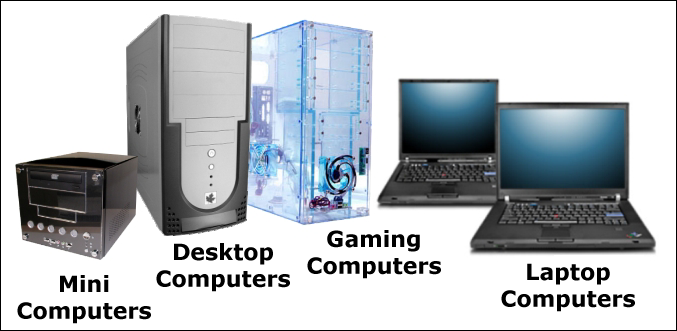
How to Choose the Right Computer?

What Type of Computer is Best For You?

You are going to computer systems, which will help you select a system that fits your needs best. First of all, you should identify what you are primarily going to be using your computer for and how it will fit into your lifestyle. Do you need to have your device everywhere with you or do you plan to use it exclusively at home? How much upgrading or customization would you want to do? Does it need to be high powered or will something more simple do? Computer systems can be divided into two categories, portable and desktop. How to Choose the Right Computer?

Below is a quick breakdown of the six most common types of computer systems you can buy today:

Tablets Or Smart Phones

Tablets or Smartphones are small, highly-portable touchscreen devices that usually use mini-programs called apps rather than traditional software packages. These devices are generally not powerful enough for heavy computer use like video editing. But great for watching videos, taking notes in small spaces, playing simple games and a wide variety of other functions.

Netbooks

Netbooks are good for internet browsing, they are small,  low-powered laptops with screens measuring around 10 inches. They are very light, portable and also cheap. But you give up the power to run demanding programs and the ability to play disks as the optical drive is generally left out to save space.

Laptops or Notebooks

These systems are portable all-in-one machines and come in a wide variety of options for size, style, weight, price, and specifications. Notebooks are generally where power, price, and portability are best aligned.

Ultrabooks

Ultrabooks are particularly designed to be lighter and slimmer than standard laptops, they come with a similar range of specifications and options as typical laptops. Their size is small but the price is higher.

Tower-Style Desktops

This type of system separates out the processor tower, monitor and other components of the computer into distinct units, making it the most customizable option. Generally, you get the most computer power in a desktop. But on the other hand, it’s not easy to take them with you.

All-in-One Desktops

All-in-one desktops combine the processor, monitor and other internal components of a computer into one compact unit. Free of tangles of cords under your desk all-in-one desktops make the buying process simple by packaging everything you need together.

If you want to buy a customized computer system that best meets your needs, Same Day Geek’s expert computer technicians can help you to Choose the Right Computer.

Categories
Computer Maintenance Checklist Computer Repair Computer Repair Services Computer Tips IT Support

How To Identify Computer Problems

Software and Hardware Problems

When your laptop or computer acts up you need to specify the issue as best as you can.  An accurate diagnosis of the problem will help you to perform effective troubleshooting. If you know the cause of the problem you’ll be in a better position to decide whether you can fix the problem on your own or you have to contact tech support or a certified computer technician.

All computer problems usually fall into 2 categories:

  1. Software problems
  2. Hardware problems

The cause of some computer malfunctions could be from either camp, but the first step is always to identify what you are dealing with. Computer hardware problems are easier to specify, but their repair cost is more than software glitches. Software problems, though harder to detect,  usually cost less to fix or repair.

Hardware Problems

Hardware problems are related to the physical components of the computer system. For instance, if there’s nothing on the screen or display, the system simply refuses to power on, the LCD displays odd colors, or the keyboard or the keys doesn’t work.

How to identify and solve hardware problems?

  • Check that your computer is plugged into a working power outlet
  • Check that everything is turned on.
  • If anything seems to not working properly, make sure the brightness is up or the volume is unmuted depending on what you are having issues with or the switch is in the appropriate position.
  • Check that keyboard, mouse, monitor, speakers, etc are plugged into your device. Try a different port to check if it is a port issue or the device is damaged. Make sure that wireless hardware has a fully charged battery.

Software Problems

Software-related problems usually appear after the startup process. If some applications or software does not work properly or the operating system is unresponsive it is simply a software issue.

How to identify and solve software problems?

  • Try  restarting your computer
  • Make sure your all programs are updated
  • Your malware or antivirus software should be running
  • If your computer is having problems after you installed a new application or software, remove that program and try reinstalling it

5 common computer problems:

How to tell if they are hardware or software?

Most computer problems are software-related but some are definitely hardware-related problems.  The below list of the 5 most common problems. Knowing where to start troubleshooting can save a lot of time.

1. Computer problem – The computer is slow

Software

It may be malware, too many startup items (Windows), or an accumulation of temporary files.

Hardware

It may be that the hard drive is fragmented or is beginning to fail, with insufficient RAM or an old CPU.

2. Computer problem – The computer keeps restarting

Software

It may be a problem with the automatic update of the operating system, adware, viruses, or other malicious software.

Hardware

It may be a graphics card, motherboard, or network card driver.

3. Computer problem – The keyboard, mouse, printer, or other peripheral devices are not working properly

Software

It may be a driver problem.

Hardware

It may be a computer port problem or a peripheral component problem.

4. Computer problem – Application command does not work

Software

If the software happens only in one application.

Hardware

Hardware (if it occurs in multiple applications).

5. Computer problem – Internet speed is slow

Software

It may be that the background application is consuming bandwidth.

Hardware

It may be a hard drive failure.


You are lucky if your problem is a software problem.

  • If it is a desktop application, you can run the repair utility or uninstall and reinstall it.
  • If it is a cloud application, log out and restart it.
  • To avoid problems, please keep the software updated.
  • In order to keep your computer clean and in good condition, please pay attention to abnormal conditions so that you can troubleshoot before daily work.
  • If you have a new computer and you are already experiencing problems, please exchange it as soon as possible.

Desktop common problems of common computer failures and troubleshooting methods

PCs and laptops have become indispensable tools in the modern era. In the process of use, more or fewer failures of this kind will occur.

As aforementioned, the problems that arise in our use of computers can be divided into two categories: hardware problems and software problems. When we deal with computer problems, we generally observe the following principles: first soft and then hard, that is, eliminate software problems first, and then eliminate hardware problems.

Desktop FAQ

1. When the window is maximized, the taskbar is covered and not automatically hidden. What’s the matter?

Solution:

  1. Right-click on the taskbar, click “Properties” in the pop-up menu,
  2. Then select the following two options in the pop-up “Taskbar and Start Menu Properties” dialog box:

“Lock your taskbar” and “Keep it in front of other windows”

2. Where is the size of the IE window set?

Solution:

First close all IE windows; open only one IE window; maximize this window; close it; OK, the default is to maximize the future, you can also use the mouse to directly drag the IE window to the largest or smallest)

3. There is no icon on the desktop, but there is a start taskbar.

Solution:

  1. Right-click on the desktop—->Arrange icons—->Show desktop icons to select it!
  2. Right-click on the desktop—->Properties—->Desktop (tab)—->Customize the desktop—>Check the required display items and confirm the application!

4. The desktop IE icon is missing (there is no IE option for customizing the desktop on the desktop)

Solution:

Right-click on My Computer -> Explorer -> Select “Desktop” on the left side of the window -> Drag the IE icon here to the desktop.

5. The quick launch icon in the taskbar is missing?

Solution:

Right-click the taskbar—toolbar—quick start—tick.

The above are the most common problems the Same Day Geek team encountered during the repair process, we hope it will be helpful to you.

You may find online help if you want to fix the computer problems yourself but be very cautious about complicated computer issues of your computer you are not familiar with. Inexperienced computer users can unintentionally cause more problems when trying to fix a computer without the training and knowledge it may require.

While trying to locate the problem with your computer, it is good to take notes. Note down what your computer is doing or not doing and note specific error codes that may come up. This will make the repairing easier if you find that you need to hand off your computer to a Certified Computer Repair Technician.

Categories
Computer Repair Computer Repair Services Computer Tips IT Support

How to Troubleshoot Your Computer

Troubleshooting Your Computer Problems

You finally finished the project your manager has hounded you about for weeks. You just added the finishing touches to your presentation. That’s perfect! Right as you’re saving it, the worst thing possible happens, your system crashes, closes programs or gives you the Blue Screen of Death. Whatever computer malfunction you encounter don’t get frantic! Before you smash your monitor, take a few breaths and follow the steps below to troubleshoot your computer.

Identify Potential Problems

First of all, look at what’s going wrong. What exactly is acting up? Just like human body health, different symptoms in your computer represent different problems.

Software Problems

If a problem starts right after you start your computer, you may have an issue with the computer software. Common signs of software problems include program malfunctions or unresponsiveness.

Steps to Take

Restart your computer. If the issue persists, check all newly installed software. If the problem began soon after you downloaded the new software or program, that may be your cause. Uninstall the program/software but keep in mind that you may lose any files associated with the program. If the issue begins immediately after starting the computer, the problem may be with software that starts automatically at launch. Check all such programs and, once you identify the troublesome one, stop it from automatically launching when your computer starts.

Hardware Problems

Hardware problems refer to the physical state of the computer and your Random Access Memory (RAM). If your system doesn’t power on, the keyboard doesn’t work or the screen’s colors seem off, all these indicate hardware problems.

Steps to Take

Check the RAM of your computer. If you’re using too much, your system will act sluggish. Decrease RAM usage by closing software/programs that start automatically.

Unless you are skilled in computer repairs, you will most likely need to let a professional computer technician handle the hardware problems. Some issues you can work around — such as screen discoloration — but others, like hard drive failure, you will have to have it replaced. Bear in mind that if your computer’s hard drive crashes, you will also lose your data/files. If you have important data stored on the hard drive you must hire a professional computer technician in order to recover your data.

Viruses/Spyware Problems

If some software/programs randomly start without you launching them, your computer may have a virus. Some other virus attack symptoms are slow-running computers and pop-up windows.

Steps to Take

Run reliable anti-virus software. If you do not have malware protection, you can download anti-virus software from online to keep the malicious software from taking over your computer. Usually running an anti-virus program will identify and remove the viruses. However, some advanced viruses can block you from downloading anti-virus software. In such a case, you could use another computer to download the software. Copy it onto an external hard drive, like a flash drive, then plug it into the computer’s USB port and run the program from there. If this doesn’t work, you should consult a professional computer technician.

These are some self To Do options in case of computer problems. But, in case of severe issues, you need to consult with a reputed Computer services provider in your local area. In Canada “Same Day Geek” is your best partner in dealing with all IT problems.

Categories
Computer Tips IT Support

Windows 10 – The Best Yet!

All You Need To Know About Windows 10

There are some neat features in Microsoft’s newest operating system i.e. Windows 10

Windows 10 is an operating system developed by MicWin-10-Tiles-672x372rosoft as part of the Windows NT family which was officially unveiled in September 2014. This operating system reached general availability on July 29, 2015. The major goal of this Windows is to unite the Windows operating system across multiple Microsoft product families—including PCs, tablets, smartphones and Xbox One, as well as new products like HoloLens and Surface Hub —allowing such products to share what Microsoft describes as “universal” application architecture and Windows Store ecosystem.

Windows 10 is familiar and better than the Windows 8 operating system. It’s easy to use with lots of similarities to Windows 7 like the Start menu. This new version of Windows starts up and stays fast. It has more built-in security and is designed to work with the hardware and software you already have.

Windows Insider feedback about Windows 10 is:

“This combines the strengths of Windows 8 with Windows 7”
Below are some of the Best Features of Windows 10

It makes web work More Convenient

The newly added feature Microsoft Edge lets you move quickly from browsing to doing. You can now type or write notes directly on any webpage and share that with others, read online articles without distraction, and save your favorite articles for later access.
Multi-doing -­­­ Get Things “Done” Faster

With the Multi-Doing feature, you can get things done faster (by better managing your desktop). Snap up to 4 items on the screen at the same time and create virtual desktops whenever you want to group things by a project such as Office apps for work and games for play.

Windows Insider compliments this feature:

“This Windows will definitely blow the other Windows versions out of the water.”
Work Flexibility

New Windows Store is the one Platform for all your favorites

Microsoft is introducing the new Windows Store to provide a unified shopping experience across every Windows 10 device. You can easily browse the store on your PC, phone or tablet to download great free and paid digital apps, movies, music, games and TV shows.
Different Great Built-in Apps

Windows 10 comes with different great built-in apps such as Maps, Mail Calendar, Photos, Music, Movies & TV. All these apps use OneDrive to back up information and sync seamlessly across your devices, so you’re never far from what you need.

Windows 10 enables your favorite apps to work and look great in all modes, on all PCs, Smart Phones and tablets.
Smartphone with PC-Like Power

Just connect a mouse, monitor, and keyboard to your Windows 10 phone to use like a PC getting things done on a larger screen.
How To Interact?

It’s your choice of what mode of interaction you use (speak, type, touch or write). So choose whatever works best for what you’re doing.

Speak
voice

You can ask Cortana to write an email, set a reminder and chat with friends and family on Skype just by talking.

Type
type

Use your keyboard or the touch keyboard on cellular devices.

Touch
touch

Do things like swipe through your photos, write on a webpage and snap apps into place.

Write
stylus
Use a pen to draw naturally, sign documents, add notes to files, or play around with art apps.

Windows 10 gives you a truly personal experience. With Windows Hello option, your PC authenticates and recognizes you based on your presence. This provides extra security, convenience and even gives a friendly hello.

For Windows 10 installation or any other computer issue Contact Same Day Geek.