Categories
Computer Tips IT Support

3 Best Remote Desktop Access Software

Best Remote Desktop Access Software in 2023

Do you wish to access and manage your PC or Laptop from another device in another location?
Or during your work, you are stuck, need expert help to sort it out and he/she demands remote access to your system.

Then consider using remote desktop software.


NOTE: ONLY ALLOW REMOTE DESKTOP ACCESS TO RELIABLE AND TRUSTED PERSONS.

Remote desktop access software is a tool that permits users to effortlessly access their computer from any place, anytime via the internet or local network. The software gives you control over your computer remotely as if you are directly sitting in front of it.

The remote desktop applications listed below will allow users to perform several actions. For instance, employees can view and manage their files on their workplace computers from home. Also, IT experts can diagnose computer issues offsite.

That said, here are the 3 top remote desktop software in the market today.

TeamViewer

TeamViewer – Remote Desktop Access  Application

TeamViewer is the ideal software for cross-platform compatibility. It’s a powerful tool that allows seamless remote access to and from PCs, laptops, mobile devices, and network machines, all with a sense of privacy and security.

TeamViewer comes with both free and paid versions. For personal use, the free version is perfect. The paid version is well-suited for businesses.

What’s even better it has a ton of features, including text chat, screen-sharing, video-conferencing, VOIP, and others. In addition, it offers users the convince of being installable and cloud-based.

Pros

  • Impressively designed viewing window
  • Free version for personal use
  • Multi-level security

Cons

  • Expensive paid version
  • You might have difficulty finding some options

RealVNC

RealVNC – Remote Desktop Access Software

VNC, formerly known as RealVNC, can cater to the need of both personal users and businesses. It’s easy to use and delivers solid and secure remote control and shared meetings.

VNC free plan support up to five computers and about three users remotely. It’s ideal for home use. VNC’s most advanced plans (professional and enterprise) will meet the needs of small businesses.

Just like TeamViewer, it delivers increased levels of security. VNC enterprise plan takes this offering a notch high by providing direct connectivity between devices with fixed IP addresses.

If you want well-priced, sturdy, and easy-to-use remote desktop software, consider VNC.

Pros

  • Well-priced
  • Multi-platform support
  • Online team management

Cons

  • Lacks accessibility features found in expensive competitors
  • Requires high-speed internet

LogMeIn

LogMeIn – Innovative Remote Desktop Software

LogMeIn is an innovative remote desktop software ideal for personal use, large businesses, and enterprises. It’s among the most popular remote access application in the market today.

Although it comes with a slightly higher price tag, it features tons of tools designed for improved productivity. It comes with no free version, but users can test the platform for 14 days for free.

With just one click, the software can share, store and collaborate files. It’s easy to use, highly secured and comes with 24/7 live support. But sometimes, this platform can deliver slow performance.

Pros

  • 1 TB cloud storage for simple storage and file sharing
  • 24/7 customer support
  • Easy remote desktop control and file management

Cons

  • Lacks a free version
  • The interface could be more intuitive

Final Thoughts

Remote desktop access application allows computers to connect and communicate with other devices, irrespective of their physical locations. Personal users and businesses can take advantage of these platforms to increase their productivity and collaboration.

On that note, our selections are widely considered stable and trustworthy. Be rest assured, they will provide you with the support you need to handle complicated technical issues.

We hope our list helps you make the right selection. Thank you for stopping by, and best of luck.

Categories
Computer Tips IT Support Microsoft

What is Microsoft Cloud PC?

What is Microsoft Cloud PC?

People have been accessing the Internet for over 30 years now. It has allowed us to do things that we never thought possible. Tech giants like Microsoft are taking advantage of this opportunity to make profit but, more importantly, to make the life of users easier.

One advancement that might change the desktop landscape forever is “Cloud PC”. Windows cloud computing service by Microsoft.

For years, Microsoft has included its flagship Window Operating system pre-installed with hardware designed by other manufactures. The operating system is often stored locally and updated regularly through the internet.

However, Microsoft Windows Cloud PC is no ordinary OS. It’s a cloud-based desktop experience that makes it easier for users to access windows and its application from anywhere, anytime.

As a result, users enjoy a secure and frequently updated system without having to depend on underpowered machines.

What is Microsoft Cloud PC?

Microsoft Cloud desktop service is a virtualized Windows 10 OS that runs completely on the cloud.

According to Microsoft, it’s an elastic, modern cloud-based windows experience that uses Windows

Virtual Desktop and Azure System to deliver Desktop-as-a-Service(DaaS).

Unlike traditional Windows OS, which is stored locally, Cloud desktop connects to the internet and accesses the Windows OS and other apps and services remotely. This offering by Microsoft is the perfect depiction of cloud computing in its purest form.

In Cloud desktop, everything will get stored on virtual machines on Microsoft servers instead of running on physical hard drives.

As a cloud PC user, you will enjoy the same visual, tools, and layout available to local Window users.

How powerful is Windows 10 as a Service?

Microsoft is actively testing Cloud PC service. The new Windows 10 as a service will have three subscription plans that users can choose from. The plans will grant customers access to different configurations from which they can run Cloud desktop. The plans include:

  • Medium Plan: Designed for the general purpose and optimized for cost and flexibility. It offers two virtual CPUs, 4GB RAM, and 96 GB SSD storage.
  • Heavy Plan: Ideal for individuals with advanced computing needs. It’s optimized for speed and increased performance. It comes with two Virtual CPUs, 8GB RAM, and 96GB SSD storage.
  • Advanced Plan: Allows users to enjoy accelerated graphics optimized for data processing and scalability. The plan comprises three virtual CPUs, 8GB RAM, and 40GB SSD storage.

The Cloud PC service will differ from Windows Virtual desktop pricing, which depends on Azure cloud usage. To access the service, users will have to subscribe to it at a fixed rate.

This is good news to businesses and homeowners since it allows them to budget exactly for the subscription.

What does Cloud PC Mean for the Users?

Cloud desktop makes it easier for users to manage their apps and services since it eliminates the need for manual installation.

Everything will run from the cloud in a virtualized manner, meaning businesses and organizations can stay updated in a scalable and more simplistic way. They won’t have to struggle with the burden of rolling out massive future updates.

Let’s not forget that most of the time Windows updates rolled out by Microsoft often tend to cause significant problems and even hardware compatibility issues.

The new cloud desktop service will allow users to utilize their devices as thin clients to access remote Windows desktops and use software like Microsoft office.  As a result, individuals who regularly switch between devices will easily access their PC on their mobile device anytime.

So, what are your thoughts on Cloud PC? Do you see yourself subscribing to the service? Or do you plan to stick to your traditional Windows PC?

Categories
Computer Tips IT Support

How To Improve the Life of Laser Printers

The HP Printer solution supplier Metrofuser test prints over 5 million pages on nearly 3 million sheets of paper each year.  Over the past 15+ years in the process of repairing over 500,000 HP printer parts and laser printer devices, the company has discovered the 4 critical decisions that you can make that improve the life of Laser Printers.

1. Choose Quality Toner  

Aside from the obvious image problems and short life expectancy, poor-quality toners also use heavier abrasive toner particulate. This type of toner can damage the printer’s paper path parts over time such as the fuser, paper sensors, paper input and output trays. It is recommended to only use OEM or high-quality remanufactured toner.

2. Use OEM New or OEM Rebuilt Printer Parts Only

Many imported printer parts are newly built clones. They are designed by someone other than the original equipment manufacturer. While they look very close to the original there are microscopic differences. This usually results in problems with fit, form and function over time. We recommend OEM New or if you’re looking to save some money, without sacrificing quality, using OEM rebuilt replacement printer parts. The OEM part chassis is engineered to match the printer.

3. Educate the User to Avoid Damage

Believe it or not, many of the printer damage we see on parts is done by accident by the end-user. The following is the most common list of end-user-related problems.

  • Pulling too hard on the paper to clear jam damage the printer.
  • Slamming the paper tray when loading paper.
  • Using sharp objects to clear a paper jam damages parts.
  • Dropping staples inside the printer.
  • Feeding paper with staples into the ADF automatic document feeder.

Educating the users of office printers can make a big difference in the expectancy. The owner’s manual is a great source for teaching people how to clear printer paper jams and loading the different paper tray cassettes.

Improve the Life of Laser Printers

4. Select ColorLok® and BLI Certified Paper

Metrofuser has found both ColorLok® and BLI Certified Paper provide clearly superior performance.  Printers are more reliable and are able to maintain image quality over more pages when compared to abrasive, large-particle filler papers. In addition to experiencing significantly fewer paper jams and other errors, these papers leave behind less dust and toner contaminants, which could potentially contribute to long-term printer reliability and image quality issues.

Testing for these certifications involves running roughly one million sheets through dozens of different copiers, printers, fax machines, digital duplicators and multifunctional devices while assessing packaging quality, cut/edge attributes, image clarity, and crease permanence, as well as numerous “run-ability” metrics. The tests prove which papers are least likely to suffer from image quality or sheet-feed problems. 

Certified papers are sold under various brands through retail, internet, catalog and contract stationers. Consumers can ask and look for the BLI or ColorLok® seal of approval on cartons and reams of imaging paper.

Learn More About The Effects Of Paper On Printers

Colorlok Brands

  • Member’s Mark – Sam’s Club
  • Antalis – Europe
  • WB Mason Blizzard
  • Copamex – Latin America
  • Domtar – North America
  • Georgia Pacific – North America
  • HP – Worldwide
  • Inapa – Europe
  • International Paper – Worldwide
  • JK – India
  • Metsa Board – Worldwide
  • Mondi – Europe
  • Office Depot
  • Papyrus – Europe
  • Staples – Americas
  • Stora Enso – Europe
  • Suzano – Latin America

 BLI Certified Brands

  • Boise X-9 Multi-Use Paper
  • Pioneer Paper
  • Navigator
  • Diverse Earth paper
  • GP Spectrum Multi-Use Paper
  • Yes Paper
  • Future Paper
  • Many Others

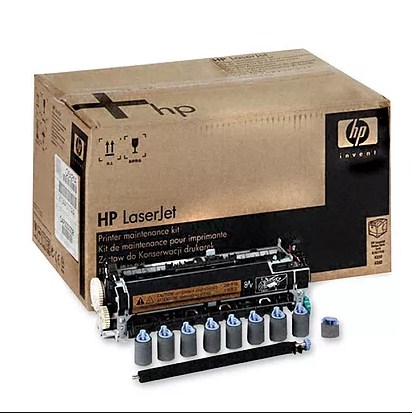
If any of your printer parts are damaged, always buy parts from a reliable printer parts provider. Metrofuser is a leading global innovator, and manufacturer of printer parts, equipment, diagnostics, repair information and systems solutions for professional users performing critical tasks. Products and services include hp printer parts, printers, and printer repair training. Parts include hp printer parts such as printer fusers, printer maintenance kits, and other hp printer replacement parts.

Categories
Computer Maintenance Checklist Computer Tips IT Support

Important Computer Maintenance Tips

Proper computer maintenance will help keep your PC running smoothly. A few minutes spent on updates and tests can avert sluggish performance and frustrating crashes. You’ll read here 7 Important Computer Maintenance Tips.

Here are some computer maintenance tips:

Install Updated Antivirus Security Software

Install a good antivirus program and set up a regular scan. Some computers come with a pre-installed antivirus program, but be sure the antivirus is installed and is set up to regularly search for malware and delete them. There are many free antivirus programs such as Avast, AVG, and Avira available if you need them. But no matter what, it is essential to protect your computer against viruses.

Consistently Backup Data

Create restore points and consistently back up your data. You may back up your files on the hard drive (or an external hard drive or the Cloud to be extra safe). Computers usually come with a program to create a system restore points (Time Machine on Macs, System Restore on Windows computers) that save a complete version of your computer that you can return to later. This is helpful if a virus has completely crashed your computer and you can’t find out how to get rid of it. Simply go back to before the virus was introduced. Set up the program to automatically create regular backups or you can install a third-party program to do this.

Keep Your System & Programs Updated

Software developers regularly update everything from your operating system to all other programs you use regularly. These updates make sure your software is running at top efficiency. These updates also regularly plug security holes so you should install updates as soon as you are notified to protect your computer against malicious spyware and viruses.

Computer Maintenance Tips

Uninstall Unused Programs and Files

If you have an older operating system regularly defragment the hard drive to keep the computer from slowing down. Make sure to uninstall unused programs and files. The more free space your computer has the faster it will run. Do a disk cleanup regularly to clear out junk files that get downloaded by your browser or other temporary program files that take up space.

Always Browse Safely

To avoid viruses and phishing scams always browse safely. Malicious software that destroys computers, finds its way to your computer by you unknowingly clicking on it. Always read the web address before you click a link in a search result. Never click through on a suspicious pop-up window, don’t give login information even if the requester claims to be from a reputable firm and never open any email or email attachment you are unsure of.

Clean Out Dust and Grime

Clean out dust that accumulates outside and inside of your computer. Built-up dust may cause overheating and could become the reason your computer breaks down. Just use a small vacuum to remove dust and other particles and spray with compressed canned air. For tower-style desktops remove the side panel to carefully clear the dust inside the tower for optimum performance.

Always Plug Your Computer into a Surge Protector

Electric storms or surges may cause irreparable damage to sensitive components inside your computer. The best way to protect it from power surges is to plug your computer into a surge protector.

If your computer is suffering from an issue and you don’t have a solution, contact a reliable Computer Repair Technician in order to fix it.