Categories
Computer Tips

Change Notifications in Windows

Silence Annoying Notifications

Change notifications play a vital role in the Windows operating system, providing users with essential updates, alerts, and information. These notifications serve as a bridge of communication between the system and the user, keeping them informed about various events, system changes, and important updates.

The Power of Timely Notifications

Imagine this scenario: You’re engrossed in important work on your Windows PC, and suddenly, a critical software update becomes available. Without change notifications, you might miss out on this crucial update, leading to potential security vulnerabilities or missing out on new features.

Change notifications act as your personal assistant, ensuring that you stay informed and up to date with the latest developments in your Windows environment.

Streamlining System Updates

Windows change notifications streamline the process of system updates. They alert you when updates are available, allowing you to schedule them at your convenience.

By keeping you informed about the importance and impact of these updates, notifications empower you to make informed decisions about when and how to apply them. This way, you maintain control over your system’s behavior while staying protected and optimized.


Tailoring Notifications to Your Needs

One of the greatest strengths of Windows change notifications is their flexibility. You have the power to customize which types of notifications you receive, ensuring that you only see what matters most to you.

Whether it’s receiving alerts about security and privacy settings, application updates, or system maintenance, Windows allows you to personalize your notification preferences to match your specific requirements.

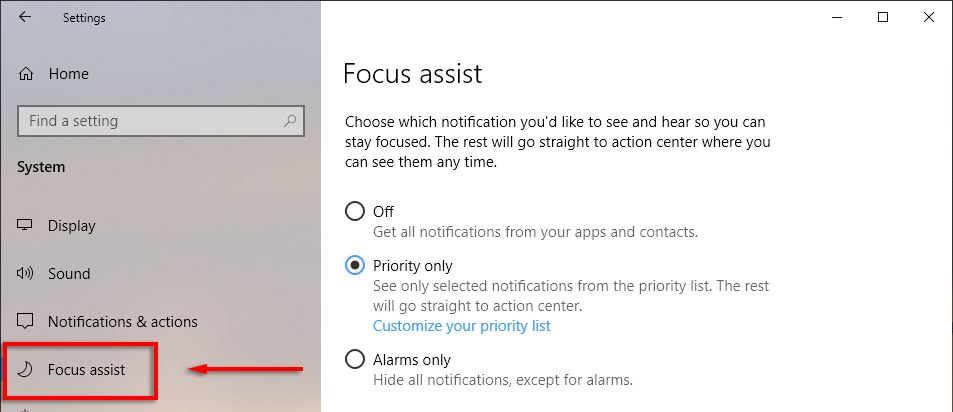
Windows has a handy feature called Focus Assist that is designed to help you focus by minimizing system disruptions, including pesky notifications.

To customize Focus Assist:

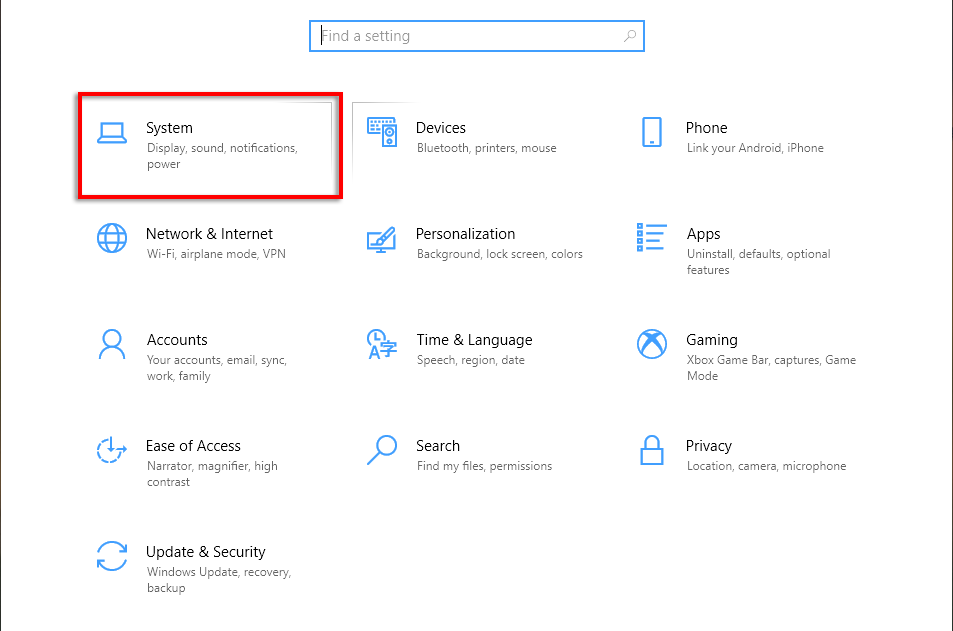
  1. Press the Windows key + to open Settings.
  2. Select System.
  1. Click Focus Assist.
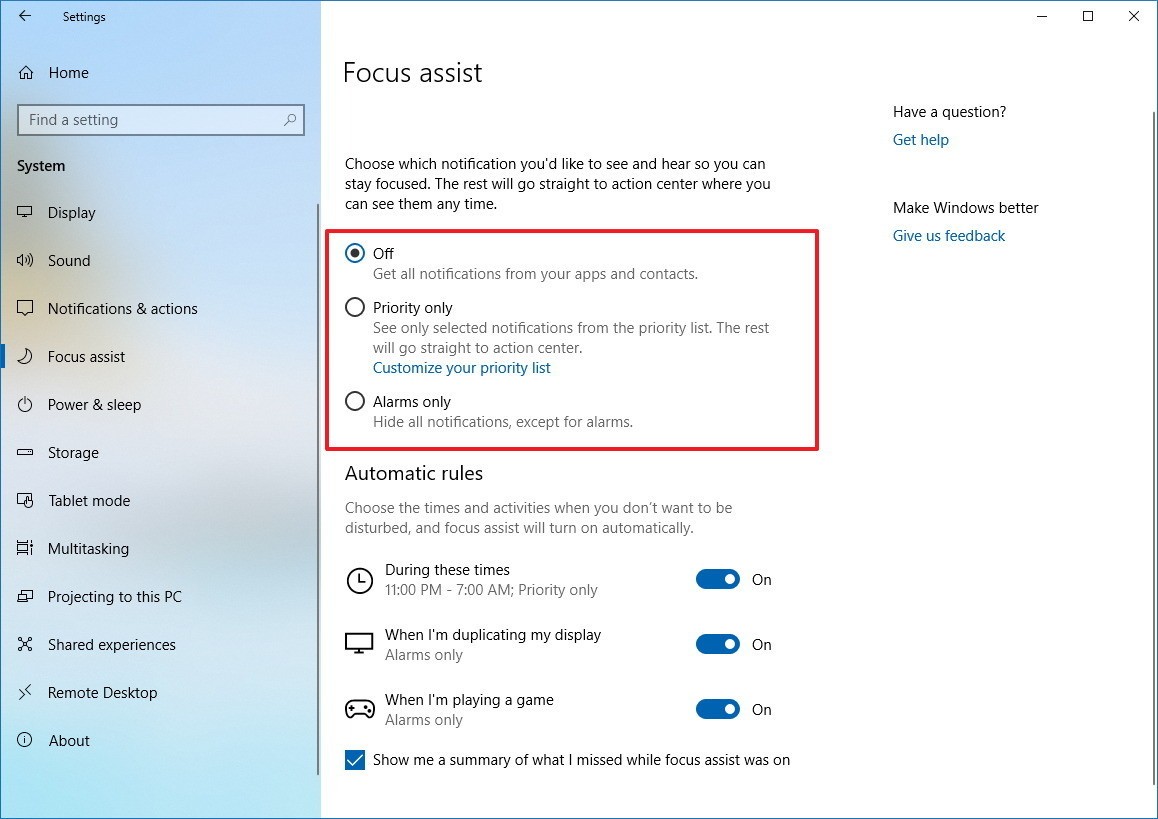
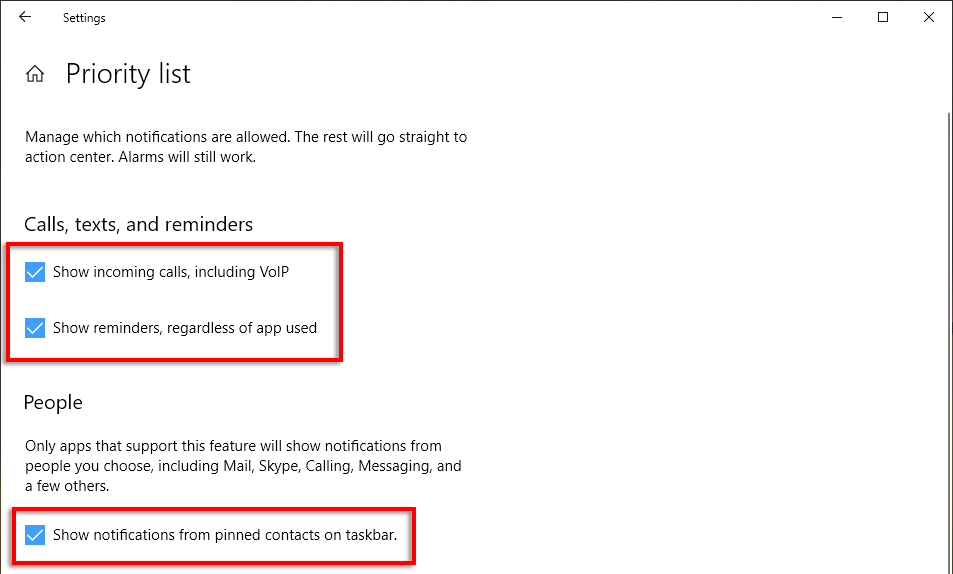
  1. Check Priority only then select Customize your priority list.
  1. Scroll down and check the notifications you want to allow. Unchecked items will go to the action center rather than pop up on your screen.
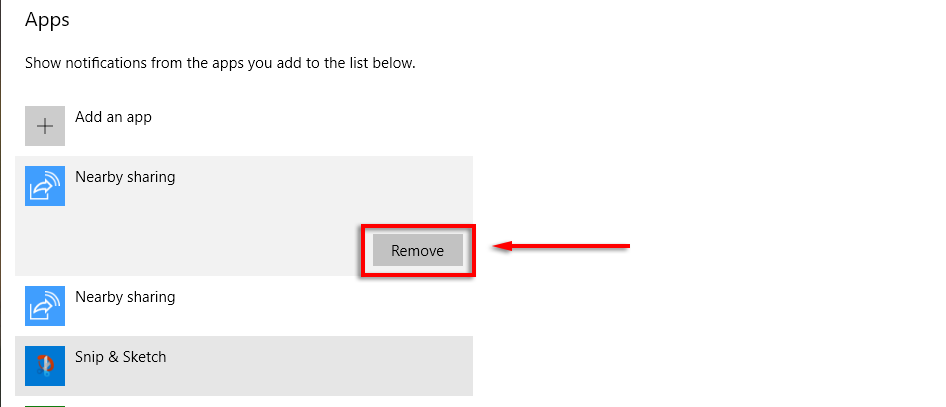
  1. Under apps, you can remove individual programs by clicking the app and selecting Remove.
Change notifications in Windows are more than just pop-up alerts. They are valuable tools that keep users informed, empowered, and in control of their computing experience.

By providing timely updates, allowing customization, and streamlining system changes, change notifications enhance user productivity and contribute to a seamless and interactive computing environment.

Embrace the power of change notifications in Windows, and stay connected to the pulse of your operating system.

Categories
Computer Repair Computer repair near me Computer Repair Services Computer Tips

Hire A Reliable Computer Repair Near You

How to Hire A Reliable Computer Repair Near You?

It is very frustrating when your computer is stuck or encounters a problem. You may try to fix the issue by yourself but it can be time-consuming and sometimes you may cause more issues. It is time to start searching for “computer repair near me” to find a local repair technician who can help. But how do you know which technician to choose and what services they offer?

Here are considerations to keep in mind while searching for computer repair services near you.

The Reputation of Computer Repair Company

You should find a reputed company or technician. Check out their reviews and ratings to see what other customers say about their services. It is recommended to consult with your family members, local area friends, or colleagues for references.

What Services Computer Repair Company Offers?

Make sure the company or technician you choose offers the services you need. Do you need hardware repair or software repair? Do you need data recovery or networking services? Before hiring a computer repair service near you, make sure the company has experience with the type of repair you need.

Location Of Computer Repair Company

When searching for “computer repair near me” choose a company or technician that is conveniently located near your local area. This will make it easier to hire the Same-Day Service or drop off your computer for repairs and pick it up when it’s ready. If they are away it’’ be hard to book Same-Day service or you don’t want to spend hours driving to and from the repair shop.

Turnaround Time

Find out how long it will take for the repair to be completed. A good technician should be able to give you an estimate of the repair time based on the issue you’re experiencing. Make sure the turnaround time fits your schedule and needs.

It is recommended to hire the Same-Day service.

Cost of Computer Repair

Compare prices from different repair companies to make sure you’re getting a fair price for the services you need. The cheapest option may not always be the best option. Look for a company that offers competitive pricing with no hidden charges.

Customer Service

Choose a company that provides excellent customer service and support. You should hire a company/technician who is responsive and can answer any questions you have about the repair process.

Pulling it all together, when searching for “computer repair near me” it’s important to choose a reputed and experienced repair company or technician that offers the services you need, is conveniently located, has a reasonable turnaround time, provides fair pricing, and offers excellent customer service. By considering the above factors, you can find a reliable computer technician to get your computer up and running again in no time.

Same Day Geek

Reputed Computer Services Firm in Canada

Are you searching for “computer repair near me” to find a local technician to deal with your computer issue? Same Day Geek is a reliable and reputed Computer Repair and Tech Support firm in Canada. Our team of experienced technicians provides fast and reliable computer repair services in your area.

Our Services

Same Day Geek offers a wide range of computer repair services to address a variety of issues, including:

  • Hardware Repair: We can diagnose and repair hardware issues such as hard drive failures, broken screens, and faulty motherboards.
  • Software Repair: We can troubleshoot and resolve software-related problems, including viruses, malware, and operating system errors.
  • Data Recovery: Same Day Geeks uses advanced data recovery techniques to retrieve lost or corrupted data from hard drives and other storage devices.
  • Upgrades and Maintenance: We offer hardware and software upgrades to improve your computer’s performance, as well as regular maintenance services to keep it running smoothly.

Why Choose Same Day Geek?

  • Convenient location: Our shop is located near you, making it easy to drop off your computer for repairs.
  • Fast Turnaround: We offer fast turnaround times for most repairs to save your time.
  • Experienced Technicians: Our technicians have years of experience and are trained to handle all types of computer issues.
  • Affordable Pricing: We offer competitive pricing for all our repair services, with no hidden charges.
  • Excellent Customer Service: We provide exceptional customer service and support. We’re always available to answer your questions and to deal with any sort of computer or tech problem.
Get in Touch

If you’re in need of computer repair services, don’t hesitate to contact us today. Same Day Geek is here to get your computer up and running again ASAP.

Categories
Computer Tips

How to create a Split Screen in Windows 10

How to split screen on Windows 10 

To split the screen in Windows 10, drag a window all the way to one side of the screen until it snaps into place. Then select another window to fill the other half of your screen.

Drag one of the windows by its title bar to the left or right side of the screen. You’ll see an outline of the window appear — release your mouse and the window will snap into that outlined position.

Categories
Computer Tips

Upgrade to Windows 11

The much-anticipated release of Windows 11 has created a buzz among computer users worldwide. With its sleek design, enhanced features, and improved performance, upgrading to Windows 11 promises to revolutionize the way we interact with our PCs.

Embracing the Next Generation

Windows 11 marks a significant milestone in the evolution of Microsoft’s operating system. Building upon the foundation of Windows 10, this new iteration introduces a fresh and intuitive user interface, designed to optimize productivity and deliver a seamless computing experience.

From the vibrant Start menu centered on productivity to the redesigned taskbar, Windows 11 embraces the next generation of computing, inviting users to embark on a visually stunning and highly functional journey.

A Breath of Fresh Air

Upgrading to Windows 11 breathes new life into your PC. Its refined design and polished interface offer a breath of fresh air, invigorating your daily interactions with technology.

Read Also:

Take Full Web Site Screen Shots

Imagine the delight of navigating through a vibrant ecosystem that adapts to your needs, offering a seamless transition between work, entertainment, and creativity.

Windows 11 opens up a world of possibilities, empowering you to unlock your PC’s full potential.

Enhanced Productivity and Efficiency

Windows 11 is engineered with productivity at its core. Its redesigned interface optimizes multitasking, enabling you to effortlessly manage multiple windows and applications.

The new Snap feature lets you arrange and organize your screen real estate, allowing for smoother workflow management.

Whether you’re a student, professional, or creative individual, upgrading to Windows 11 can significantly enhance your productivity and efficiency, helping you accomplish tasks with ease and precision.

To check if your current Windows 10 PC can run Windows 11, download the PC Health Check app once it becomes available. Download PC Health Check

If you’re running Windows 8.1 or earlier, or if your PC doesn’t meet the minimum system requirements to run Windows 11, consider moving to a new Windows 11 device.

The simplest way to get Windows 11 is via Windows Update. You’ll know that it’s ready for your PC because you’ll see messaging for it in Windows Update.

Follow these instructions to proceed with the installation. You won’t lose any data or files on your PC with this option.

Installation Steps of Windows 11

Step 1: Head over to Settings > Update & security. From there, click Check for updates.

Step 2: You should notice a prompt for Upgrade to Windows 11 is ready, and it’s free. Click the blue Download and install button and agree to the terms with the Accept and install button.

Step 3: You should then see the Upgrade to Windows 11 appear under Windows Update, with a percentage and download status. Wait for it to complete.

Step 4: When finished, you’ll get a prompt to restart your PC. Choose the Restart now option. Your PC will proceed with Windows 11 installation and will restart a few times. When finished, you’ll be taken to the Windows 11 desktop!

Upgrading to Windows 11 heralds a new era of computing, where innovation and user-centric design converge. With its sleek interface, enhanced productivity features, and immersive experiences, Windows 11 transforms your PC into a powerhouse of possibilities.

Whether you’re a digital artist seeking to unlock your creative potential or a gamer yearning for cutting-edge experiences, upgrading to Windows 11 opens the door to a world of endless opportunities.

Embrace the future of computing, upgrade to Windows 11, and embark on a journey of technological excellence.